Shadcn Tabs Components
A set of layered sections of content, known as tab panels, that are displayed one at a time. Each tabs example mirrors the patterns used by Radix UI and Base UI. Browse our collection of 15 Shadcn Tabs variants.
Tabs
Content for Tab 1
Tabs
Content for Tab 1
Content for Tab 1
Content for Tab 1
Content for Tab 1
Content for Tab 1
Content for Tab 1
Horizontal scrollable
Content for Tab 1
Content for Tab 1
Content for Tab 1
Content for Tab 1
Content for Tab 1
Content for Tab 1
Content for Tab 1
Content for Tab 1
Unlock premium components
Explore Shadcn Blocks
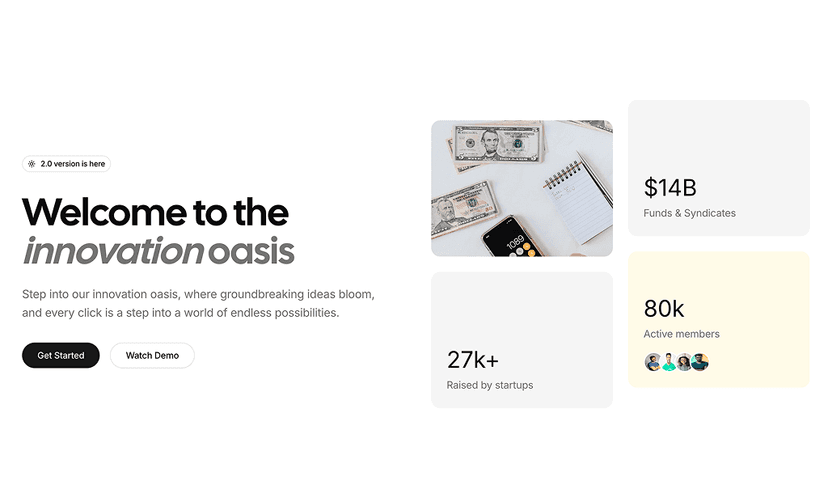
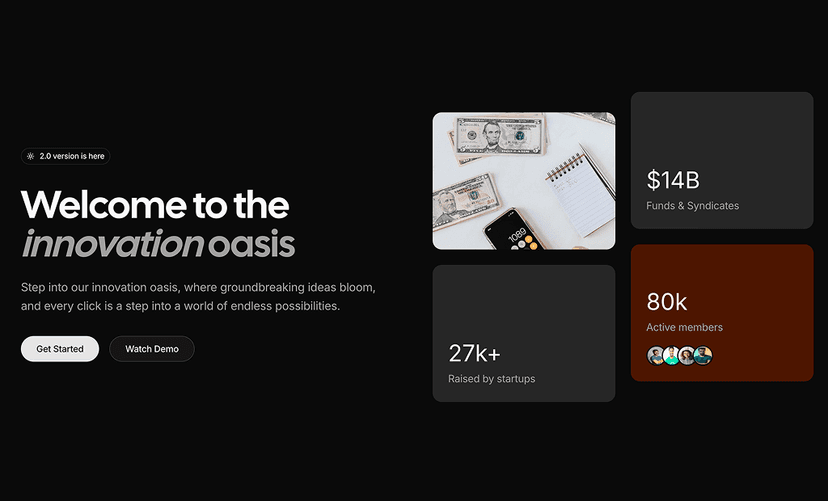
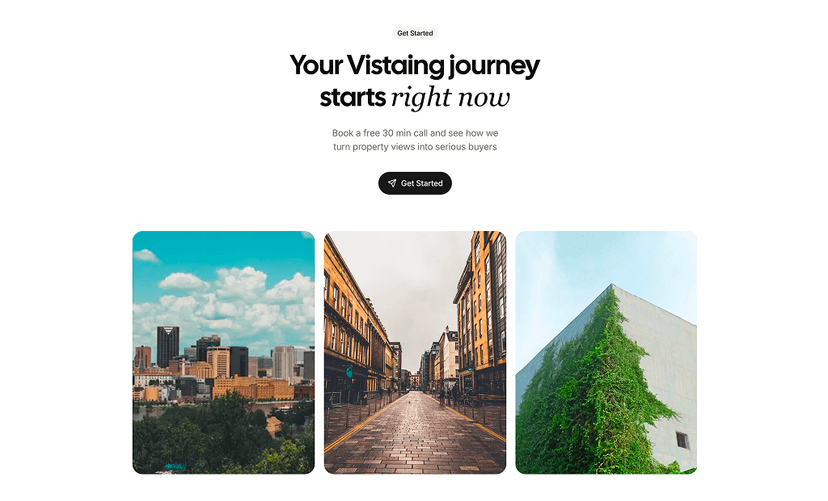
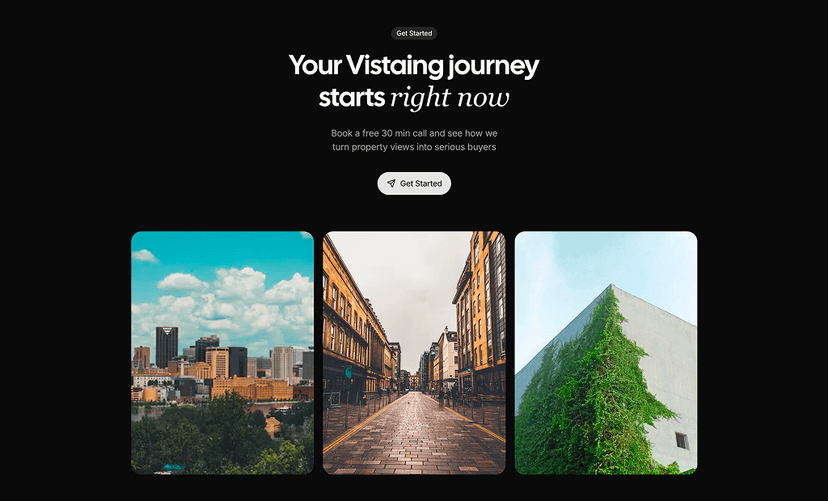
Ready-made page sections built with the same components.


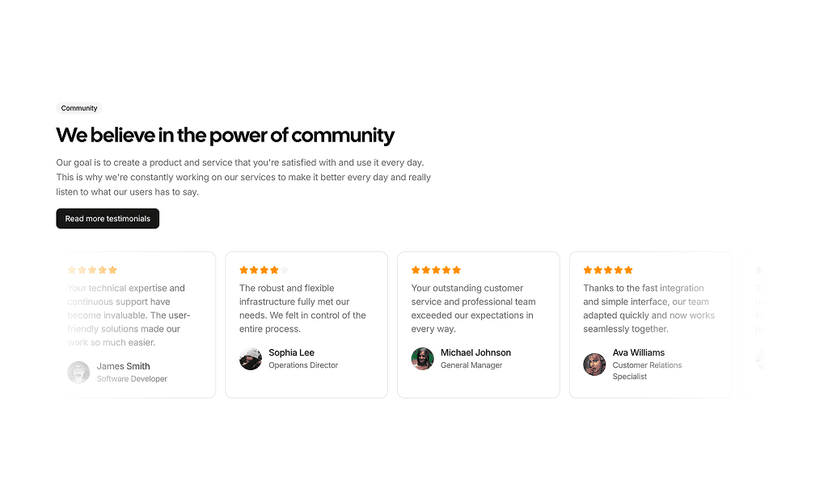
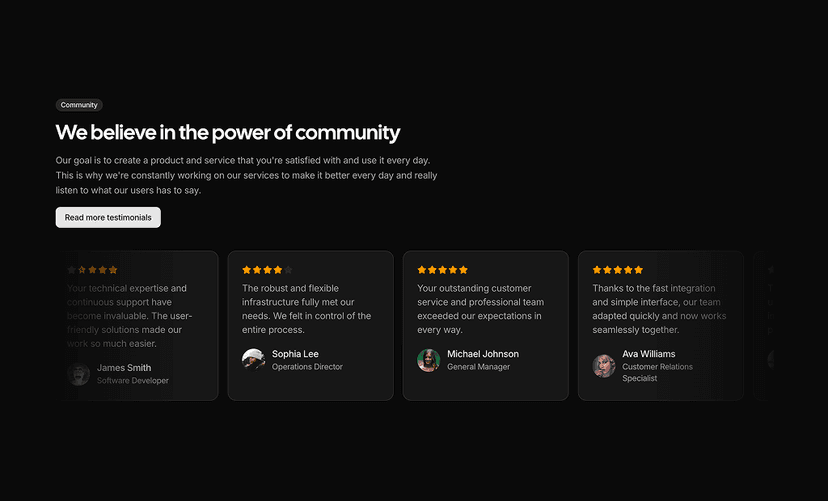
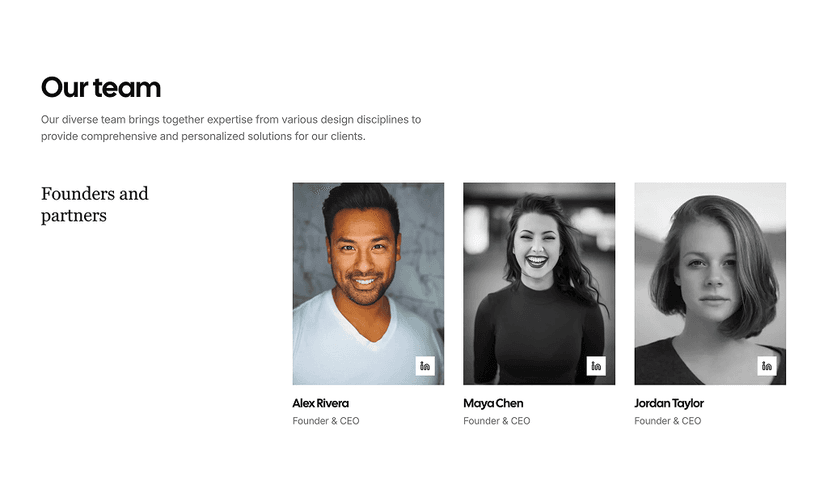
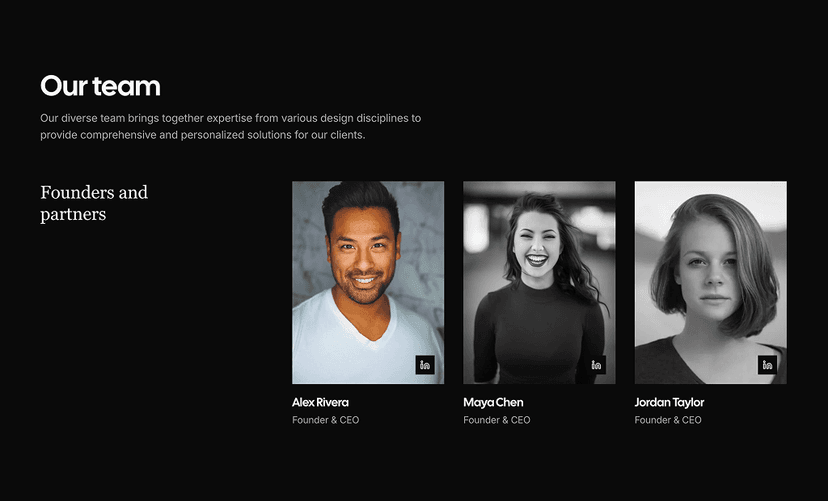
Shadcn Tabs Component
The Shadcn Tabs component splits related content into panels and shows one panel at a time, with a row of tab buttons to switch between them. It is the standard way to put several views of the same subject on one screen: overview and analytics in a dashboard, profile and security in settings, or description and reviews on a product page.
Underline and folder styles, count badges, icon only triggers with tooltips, a scrollable row for small screens and vertical tabs beside the content make up this set. Built with shadcn/ui, React and Tailwind CSS, every shadcn tabs example relies on a primitive available in both Radix UI and Base UI, so roles, focus handling and arrow key navigation work out of the box.
What is the Shadcn Tabs Component?
Tabs connect a list of triggers to a set of content panels through a shared value. Selecting a trigger shows the matching panel and hides the others, and the active trigger gets data-state="active" so you can style it with Tailwind. The root supports an orientation of horizontal or vertical, and TabsList has two built-in looks: the default pill style on a muted background and a line style with an underline under the active tab.
Use tabs when the views are parallel and users only need one at a time. When users should be able to open several sections and read them in order, an Accordion works better. To switch a value rather than a view, such as a list or grid layout, use a Toggle, and for moving between pages of an app, use a Navigation Menu with real links.
Anatomy of the Shadcn Tabs
| Part | Description |
|---|---|
| Tabs | The root. Takes defaultValue or a controlled value with onValueChange, plus orientation and activationMode. |
| TabsList | The row or column of triggers. Accepts variant="default" or "line". |
| TabsTrigger | A tab button linked to a panel by its value. Can hold text, icons and badges, and supports disabled. |
| TabsContent | The panel shown when its value matches the active tab. |
| tabsListVariants | The class variance authority function behind TabsList, exported so you can reuse or extend its styles. |
15 Shadcn Tabs Variants
Each tabs variant listed here is previewed live at the top of this page, together with its source code and install command.
- Basic styles: Overview, Analytics and Reports tabs in the default pill style, a transparent style with a muted active tab and a filled primary pill.
- Underline and folder tabs: The
linevariant with an underline on the active tab, and folder style tabs with rounded tops that sit on a baseline. - With icons: Triggers with a leading icon, or with the icon stacked above the label for a compact toolbar look.
- With badges: Count badges next to or above the labels that fade when the tab is inactive.
- Horizontal scrollable: A long list of tabs wrapped in a Scroll Area with a horizontal scrollbar, so labels never get squeezed on small screens.
- Icon only with tooltips: Icon triggers that show their label in a tooltip, with a notification badge on one of the icons.
- Vertical tabs: Tabs stacked on the left of the content, in line, filled pill, icon and icon only with tooltip styles.
How to Install the Shadcn Tabs Component
Set up shadcn/ui in your project if you have not already, then add the Shadcn UI Kit registry to your components.json once:
{
  "registries": {
    "@shadcnuikit": "https://shadcnuikit.com/r/{name}.json"
  }
}
Then install a tabs variant by its name:
npx shadcn@latest add @shadcnuikit/tabs1The same command works with pnpm dlx, yarn dlx and bunx --bun. Each variant has a copy button for every package manager, and the code is added to your project as plain React and Tailwind CSS that you can edit freely.
How to Use the Shadcn Tabs Component
Give every TabsTrigger and TabsContent pair the same value, and set defaultValue on the root to choose the tab that is open first.
import { Tabs, TabsContent, TabsList, TabsTrigger } from "@/components/ui/tabs"

export function AccountTabs() {
  return (
    <Tabs defaultValue="profile" className="w-full max-w-md">
      <TabsList>
        <TabsTrigger value="profile">Profile</TabsTrigger>
        <TabsTrigger value="security">Security</TabsTrigger>
        <TabsTrigger value="billing" disabled>
          Billing
        </TabsTrigger>
      </TabsList>
      <TabsContent value="profile">
        Update your name, avatar and bio.
      </TabsContent>
      <TabsContent value="security">
        Change your password and enable two factor authentication.
      </TabsContent>
      <TabsContent value="billing">Manage your plan.</TabsContent>
    </Tabs>
  )
}
Why Use the Shadcn Tabs Component
- Less clutter: Several views share one area of the screen, and users switch without scrolling or loading a new page.
- Keyboard ready: Arrow keys, Home and End move between tabs, following the WAI-ARIA tabs pattern.
- Two built-in looks: Switch between the pill and the underline style with one
variantprop. - Horizontal or vertical: The same components work as a top bar or as a side navigation next to the content.
- Easy to style: The active tab is exposed through data attributes, so custom looks are just Tailwind classes.
Common Tabs Use Cases
- Dashboards: Overview, analytics and reports for the same data.
- Settings pages: Profile, security, notifications and billing sections.
- Product pages: Description, specifications, reviews and shipping.
- Code examples: Preview and code, or the same snippet in several languages.
- Authentication: Sign in and sign up forms in one card.
- Inboxes and feeds: Filtered views such as All, Unread and Archived with counts.
Customizing the Shadcn Tabs
Style the active tab with the data-[state=active] variant, remove the muted background by passing bg-transparent to TabsList, or use variant="line" for an underline. For many tabs, wrap the list in a Scroll Area with a horizontal scrollbar. Colors come from your theme variables, which you can generate with the free Theme Generator.
This makes the active tab a filled primary pill:
<TabsList className="gap-1 bg-transparent">
  <TabsTrigger
    value="overview"
    className="data-[state=active]:bg-primary data-[state=active]:text-primary-foreground"
  >
    Overview
  </TabsTrigger>
</TabsList>
Tabs Accessibility and Keyboard Support
Tabs follow the WAI-ARIA tabs pattern. The list has role="tablist", each trigger has role="tab" with aria-selected and aria-controls, and each panel has role="tabpanel" labelled by its trigger. Only the active tab is in the tab order, and arrow keys move between the others. Icon only triggers need an aria-label, because a tooltip alone is not a reliable accessible name.
| Key | Action |
|---|---|
| Tab | Moves focus to the active tab, then into the active panel. |
| ShiftTab | Moves focus back to the active tab or the previous element. |
| ArrowRight | Moves to the next tab in horizontal tabs. |
| ArrowLeft | Moves to the previous tab in horizontal tabs. |
| ArrowDown | Moves to the next tab in vertical tabs. |
| ArrowUp | Moves to the previous tab in vertical tabs. |
| Home | Moves to the first tab. |
| End | Moves to the last tab. |
Tabs Best Practices
- Keep labels short, one or two words, so the tab row stays on one line.
- Use tabs for parallel views; do not use them for steps that must be done in order.
- Open the most used tab by default.
- Keep the tab list in the same place when the content changes, so the layout does not jump.
- Sync the active tab with the URL, for example a
?tab=query, when users need to share or bookmark a view. - Avoid nesting tabs inside tabs; use a vertical layout or separate pages instead.
Components Related to Tabs
Shadcn Tabs FAQ
Looking for something else? Browse all shadcn/ui components or ready-made UI blocks built with them.