Shadcn Team Sections

Showcase your team members with elegant shadcn/ui team section components. These beautifully designed components display team member profiles, professional photos, roles, expertise, and social media links to build personal connections and establish trust with your audience. Perfect for about pages and company websites.

Team Section 1 Pro

Heading and intro paragraph above a four column grid of bordered cards, each with a tall cover photo, the person's name and job title. Collapses to two columns and then one on smaller screens.

Team Section 2 Pro

Header with a We're Hiring badge, heading, text and About Us and Job Openings buttons, followed by four people with round avatars, name, role, a short bio and X, Facebook and LinkedIn links.

Team Section 3 Pro

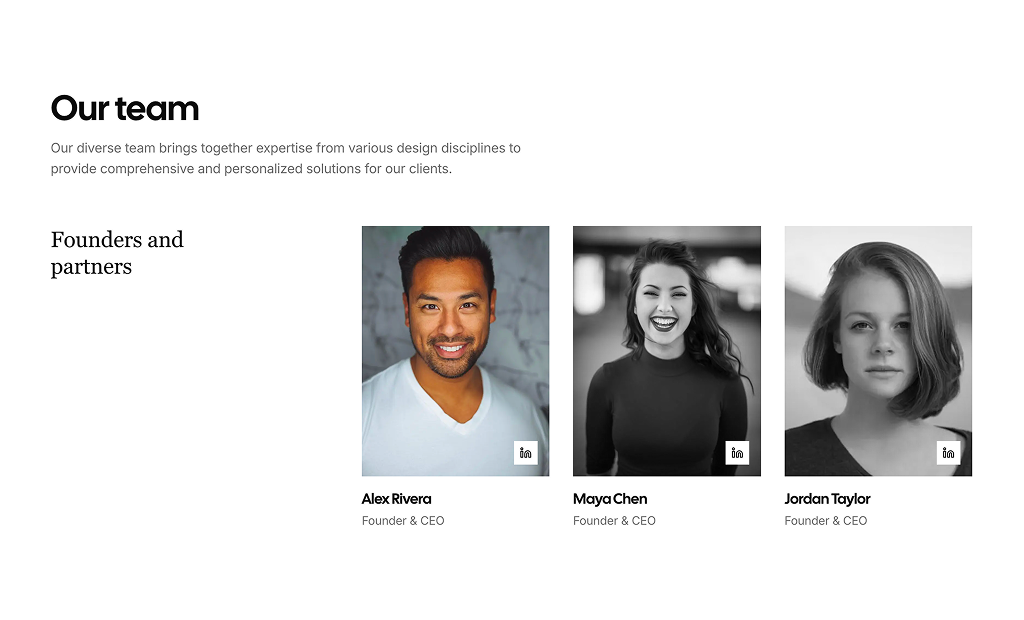
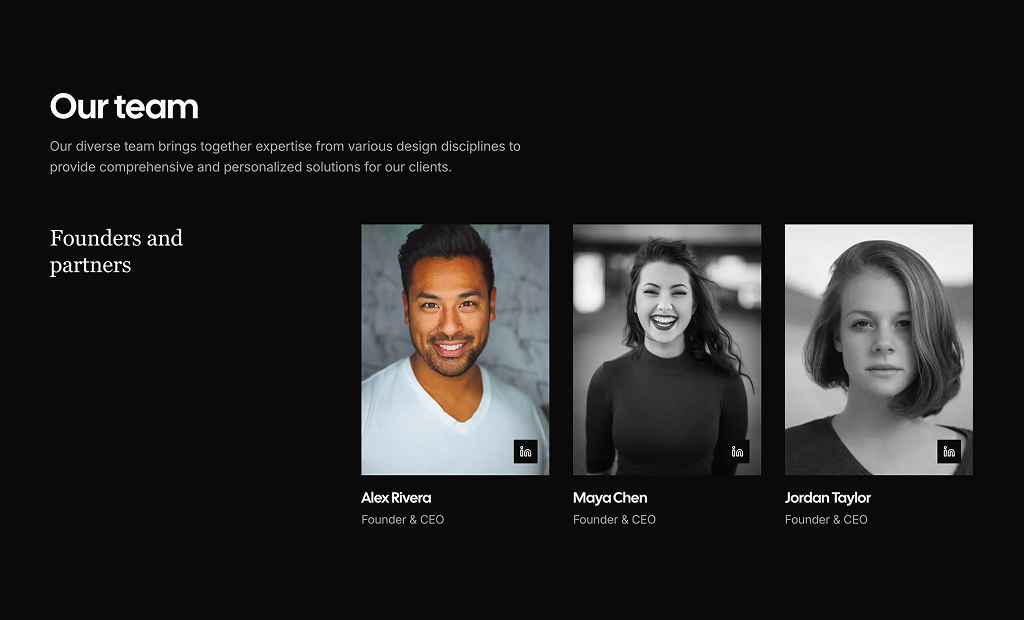
Team split into two labelled rows, founders and designers, each with a serif group title and three portrait cards. Photos are grayscale until hovered and carry a LinkedIn button in the corner.

Team Section 4 Pro

Two column layout with heading, text and a Join Our Team button on the left and three bordered portrait cards on the right, each showing name, role and Twitter, Instagram and Facebook links.

Team Section 5 Pro

Centered heading and text above six large round grayscale portraits in a wrapping row, each with name, job title and Twitter, Instagram and Facebook icon links underneath.

Team Section 6 Pro

Numbered heading with intro text and an outline Read more button, above a two to four column grid of tall rounded portraits with small name and title captions.

Team Section 7 Pro

Centered heading above a row of four pill shaped photo panels on pastel backgrounds. Hovering a panel widens it, squares its corners and fades in the name and role over a dark gradient.

Team Section 8 Pro

Leadership grid with a small Our team link, heading and Join us button, then six bordered cells in three columns, each holding a name, title, short description and a small square photo.

Team Section 9 Pro

Three column grid that starts with a primary colored card containing the heading, text and a Join the team button, followed by five photo cards with name, role and Twitter and Instagram links.

Team Section 10 Pro

Large centered heading over four tall photo cards fanned along an arc with name and title on a gradient. The hovered card lifts up. Phones get a two column grid instead of the fan.

Team Section 11 Pro

Two column section on a muted background with a large heading, short text and a Join our team button next to a three column, staggered collage of six rounded team photos.

Team Section 12 Pro

Centered icon tile and heading above pill shaped cards with round grayscale avatars, name and title. Two founders sit in the top row and six team members wrap in the row below.

About Shadcn UI Team Sections Blocks

A team section introduces the people behind a product or company with their photos, names and roles, so visitors know who they will work with. These twelve shadcn team blocks range from simple photo grids and bio cards to a grouped founders layout, a bordered leadership grid, a hover accordion and a fanned card arc.

Like the rest of our shadcn blocks, every layout is written in React and TypeScript, styled with Tailwind CSS and built on shadcn ui components such as Button. The people live in a small array at the top of each file, photos load through next/image and every block follows your light and dark theme, so these shadcn components drop into an About or careers page with little setup.

Key Elements of a Team Section

  • Consistent photos: the same crop, ratio and style for everyone, which is why several blocks use fixed aspect ratios or a grayscale filter.
  • Name and role: a visible name and job title for every person, placed directly under or on the photo.
  • Short context: a one line bio or description when the title alone does not explain what the person does.
  • Social links: LinkedIn, X or Instagram icons for visitors who want to learn more about someone.
  • A hiring call to action: a Join Our Team or Job Openings button that turns interest into applications.

Where and Why to Use Team Section Blocks

People trust people more than logos. A team section shows that real, qualified humans stand behind the product, which matters most for services, startups and any business where the buyer will talk to your staff. It also supports hiring, because candidates look for the people they would work with. Since these blocks use the same shadcn ui components and Tailwind CSS tokens as the rest of your site, the section matches your pages without extra styling.

  • About pages: show the founders and the wider team below the company story.
  • Careers pages: pair the team with a Join or Job Openings button next to the open roles.
  • Agencies and consultancies: present the partners and specialists a client will actually work with.
  • Coaching and personal brands: give each coach or trainer a large, friendly photo.
  • Startup landing pages: a compact founders row adds credibility close to the call to action.

Team Section Blocks in This Collection

  • Team Section 1: A safe default for studios and small firms that want large portraits with nothing but the essentials under each one.
  • Team Section 2: Suits startups that are recruiting, since it combines short personal bios with hiring actions in the header.
  • Team Section 3: Use it when people belong to distinct groups, for example partners and the design staff, and you want each group under its own heading.
  • Team Section 4: A good fit for a small core team of three, with the pitch and a join button on one side and the people on the other.
  • Team Section 5: Works for engineering or product teams that want a calm, centered layout with round portraits.
  • Team Section 6: Fits numbered, editorial pages where the team is one chapter among several and needs a link to a longer story.
  • Team Section 7: A playful option for creative brands with a handful of people, where hovering reveals who is who.
  • Team Section 8: Built for consulting and advisory firms that need to explain each leader’s area of expertise in a structured grid.
  • Team Section 9: Places a colored intro card inside the grid, which keeps the heading and hiring link close to the people.
  • Team Section 10: A statement layout for coaches, speakers or a founding team of four, shown as a fanned arc of tall cards.
  • Team Section 11: Use it when you want to show team culture through a photo collage rather than individual names.
  • Team Section 12: Handles larger teams in little space and makes the leadership level visible at the top.

Similar Block Categories

  • Testimonials: let clients speak about the team you just introduced.
  • Stats: add numbers such as years in business or projects delivered next to the team.
  • Contact Us: give visitors a direct way to reach the people they just met.
  • Call to Action: close a careers page with a clear apply or join step.
  • Feature Sections: explain what the team builds before showing who builds it.

Accessibility

Every photo has alt text built from the person’s name, such as “Picture of Michael Scott”, and the icon-only social links include a visually hidden label (sr-only) with the network name, so screen readers announce them correctly. Team Section 11 uses a generic “Team member” alt for its collage, so consider writing a short description for each photo.

In Team Section 7 the name and role appear only on mouse hover, and in Team Section 10 the hover lift is pointer only as well. If the names matter, consider keeping them visible or adding focus handling so keyboard users get the same information. The social links point to “#” in the samples, so replace them with real profile URLs or remove the icons.

Team Sections FAQ

A team section introduces the people behind a company or product with a photo, a name and a role for each person. It turns an anonymous brand into real people and gives visitors a reason to trust the work.

They are ready-made team layouts built with React, Tailwind CSS and shadcn ui components such as Button. Each block keeps its people in an array at the top of the file, so you replace the sample names, roles and photos and the layout stays the same.

Visitors want to know who they are dealing with, especially before hiring an agency, booking a coach or joining a startup. Faces, names and job titles make the company feel accountable and approachable, and a hiring button turns the section into a recruiting tool.

A clear heading, one consistent photo per person, the name and role under every photo and, when it helps, a short bio or social links. If you are hiring, add a button such as Join Our Team or Job Openings next to the heading.

On the About page, on agency and consulting homepages before the contact section, on careers pages next to open roles and on product pages for small teams where the founders are part of the story.

Every block declares a teamMembers array (founders and designers in Team Section 3, columns of photos in Team Section 11) with name, title or role and image. Edit those objects and add or remove items. The grids and flex rows adjust to the new count.

Team Section 2 shows X, Facebook and LinkedIn icons for each person, Team Section 3 places a LinkedIn button on every photo, Team Section 4 and Team Section 5 show Twitter, Instagram and Facebook, and Team Section 9 shows Twitter and Instagram. The URLs live in each member object.

Team Section 2 adds a one sentence bio under the name and role, and Team Section 8 gives every person a description inside a bordered grid cell. Use these when the roles alone do not explain what each person does.

Team Section 7 widens the hovered photo and slides in the name and role, and Team Section 10 lifts the hovered card out of a fanned arc. Both are client components that track the hovered index with useState. Team Section 3 uses only CSS to turn grayscale photos into color on hover.
No animation library is used. The hover effects in Team Section 7 and Team Section 10 are plain React state with Tailwind transitions or inline transforms. The blocks use next/image for photos, lucide-react for the social and arrow icons and the shadcn Button for calls to action.

Team Section 2 has a We’re Hiring badge with About Us and Job Openings buttons. Team Section 4, Team Section 9 and Team Section 11 pair the team with a single Join button, and Team Section 8 adds a Join us link next to the leadership heading.

Edit the grid classes on the wrapper. Team Section 1 goes from one column to two at the small breakpoint and four on large screens, Team Section 6 starts with two columns and uses four from the small breakpoint, and Team Section 9 uses one, two and three columns with the intro card as the first cell.

The grid blocks collapse to one or two columns. Team Section 10 replaces its fanned cards with a two column grid below the small breakpoint and uses a smaller fan on tablets. Team Section 12 stacks its pill shaped cards to full width, while Team Section 7 keeps all four photos in one row, so it suits short teams best.

Team Section 12 puts the two founders in the top row and the rest of the team below as compact pill cards, which reads like a light org chart. Team Section 3 splits people into labelled groups, such as founders and designers, with a heading for each group.

No. All twelve team section blocks are part of All Access, the one-time license that also unlocks every other block, admin dashboard and template with lifetime updates.
shadcn team sections
Unlock Premium Blocks & Sections
Premium blocks are part of All Access. One license unlocks the whole Shadcn UI Kit, so you can build complete pages and products instead of single sections.
  • 550+ blocks for landing pages, stores, dashboards and apps
  • 16 admin dashboards and 17 ready-made apps
  • 5 premium Next.js website templates
  • 560+ component variants and 70+ examples
  • Install with the shadcn CLI or from your AI editor through the MCP server
  • Lifetime updates, including every new block we release
Unlock Now

One-time payment, no subscription.