About Shadcn Modal Dialogs Blocks
A modal dialog is a focused window that opens above the current page and asks the user to finish or dismiss one task before returning to it. These 28 shadcn modal dialog blocks cover the dialogs most apps need: sign up and verification, sharing and team access, feedback and surveys, setup forms, plan selection, confirmations and a command palette.
Like the rest of our shadcn blocks, every dialog is built with React, TypeScript and Tailwind CSS on top of shadcn ui components such as Dialog, Alert Dialog, Command, Field, Select and Radio Group. Form dialogs come with validation through valibot schemas, and each block ships with its trigger button and open state, so you can drop these shadcn components into a page and connect them to your own data.
Key Elements of a Modal Dialog
- Title and description: a short heading and one sentence that explain the task, also used by screen readers.
- Focused content: only the fields, options or list needed for this one task.
- Primary action: one clear button such as Continue, Apply or Grant access that completes the task.
- Way out: a Cancel, Dismiss or Not now button, a close icon and the Escape key.
- Inline feedback: validation messages, disabled states and confirmation text like “Copied!” where they are needed.
Where and Why to Use Modal Dialog Blocks
A modal keeps users on the page they are working on. Instead of navigating away to sign in, change a setting or confirm a delete, they finish the task in place and continue. Dialogs are also one of the harder parts of a UI to get right, with focus handling, validation and mobile sizing, so starting from tested shadcn ui layouts saves time and keeps every dialog in your Tailwind CSS app consistent.
- Authentication: sign up, log in, one time codes and two factor setup without leaving the landing or app page.
- Collaboration: share links, invite teammates and change roles from any board or document.
- Feedback collection: mood checks, ratings, bug reports and reasons for flagging content.
- Quick create and edit: new projects, company profiles, quizzes and profile updates.
- Billing: plan selection, upgrade checkout and payment confirmations.
- Power user tools: a command palette and an activity feed that open over any screen.
Modal Dialog Blocks in This Collection
Sign up, sign in and verification
- Modal Dialog 1: A branded sign up that pairs social login with an email field, ideal for marketing pages that want a visual next to the form.
- Modal Dialog 2: Use it right after sign up or before a sensitive change to confirm an email address with a short code.
- Modal Dialog 3: Fits products that need a phone number at sign up and want to guide users toward a strong password.
- Modal Dialog 4: Drop it into security settings to let users connect an authenticator app by scanning or typing a key.
- Modal Dialog 5: A minimal workspace login for apps that open sign in over the current page instead of a separate route.
Sharing, people and accounts
- Modal Dialog 6: The simplest share flow, for read only links to boards, reports or documents.
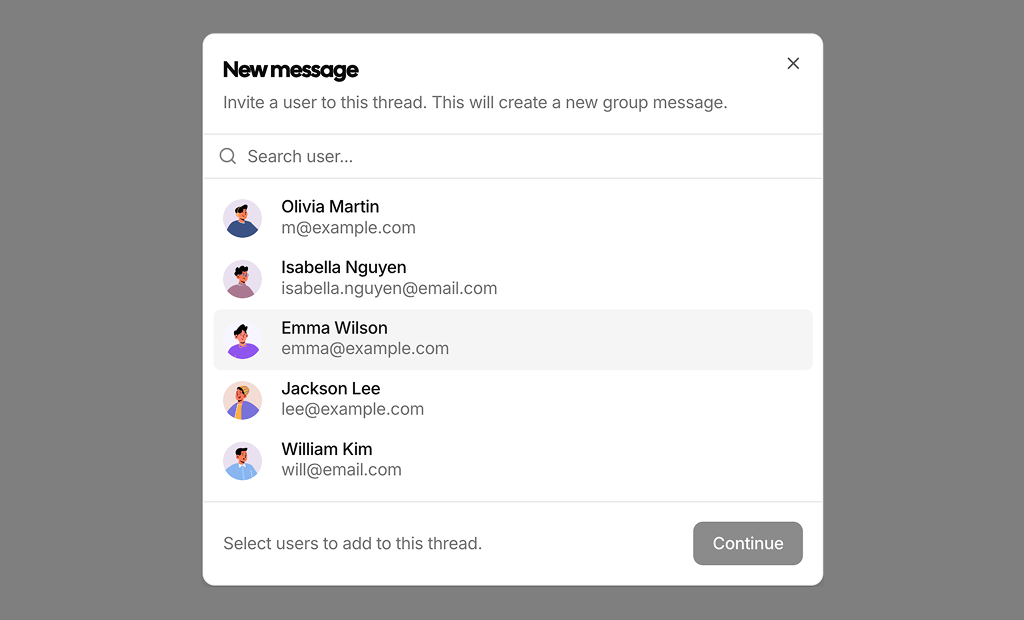
- Modal Dialog 7: Suits messaging and support tools where users build a group conversation from a contact list.
- Modal Dialog 8: Covers full sharing control in one place, from inviting people to choosing what anyone with the link can do.
- Modal Dialog 9: Lets people with several accounts or workspaces switch between them from a user menu.
- Modal Dialog 21: Works for larger teams where admins need to find a member before changing their access.
Feedback and surveys
- Modal Dialog 11: A friendly pulse check for internal tools or communities that track how users feel over time.
- Modal Dialog 12: Asks for one quick score after a visit, order or support case, with no extra fields to slow people down.
- Modal Dialog 13: Collects a rating plus written context and permission to follow up, useful for product research.
- Modal Dialog 15: Good for bug reports and support requests where a screenshot explains more than text.
- Modal Dialog 18: Lets learners or readers report a problem with content and only asks for details when the reason is not listed.
Forms, setup and settings
- Modal Dialog 10: Guides new users through first time setup without sending them to a separate onboarding page.
- Modal Dialog 19: A small settings dialog for choosing one notification level, easy to adapt to any single choice preference.
- Modal Dialog 22: Fits project management tools that create a project with a date, owner and visibility in one step.
- Modal Dialog 23: Lets users update their photo and contact details from an account menu without leaving the page.
- Modal Dialog 26: Suits directories, CRMs and marketplaces where users create a public business profile with a logo.
- Modal Dialog 27: Built for learning platforms and quiz tools where authors add a question and its answer options.
Plans, payments and confirmations
- Modal Dialog 14: Shows a short plan choice before checkout, useful for apps with only a monthly and a yearly option.
- Modal Dialog 16: A success message to show after a payment proof or other upload, so users know what happens next.
- Modal Dialog 17: Use it before any irreversible delete, where a clear second step prevents mistakes.
- Modal Dialog 25: A complete in app upgrade flow for SaaS products that sell seats and add-ons from inside the dashboard.
- Modal Dialog 28: Fits integrations and OAuth style flows where users must see what another app will be allowed to do.
Command palette and activity
- Modal Dialog 20: Gives power users a searchable list of actions, usually opened from a header button or a keyboard shortcut.
- Modal Dialog 24: Shows recent notifications by category in a dialog, handy for apps without a dedicated notifications page.
Similar Block Categories
- Form Layouts: move longer forms out of a dialog and onto their own page.
- Sign In Forms: full page versions of the login and sign up flows.
- Onboarding Screens: longer setup flows when a four step dialog is not enough.
- Dropdown Components: lighter menus for actions that do not need a full dialog.
- Empty State: pair an empty screen with a create dialog that adds the first item.
Accessibility
The blocks use the shadcn Dialog, Alert Dialog and Command Dialog components, which are built on Radix primitives that trap focus inside the open dialog, close it with the Escape key and return focus to the trigger. Every dialog sets a title, and where the description is not shown on screen, as in Modal Dialog 1, Modal Dialog 12, Modal Dialog 14 and Modal Dialog 24, it is kept as screen reader only text. Form fields use labels linked with htmlFor, set aria-invalid on errors and show messages through FieldError. Icon only controls such as the password toggle in Modal Dialog 3, the copy button in Modal Dialog 6 and the attach and remove buttons in Modal Dialog 15 have aria-labels, the drop zone in Modal Dialog 26 works with Enter and Space, and the answer error in Modal Dialog 27 is announced with role alert.
A few spots are worth improving before production. Some inputs rely on a placeholder only, such as the invite email in Modal Dialog 8, the member search in Modal Dialog 21 and the card fields in Modal Dialog 25, so consider adding visible or screen reader labels. The selectable cards and emoji buttons in Modal Dialog 9, Modal Dialog 12, Modal Dialog 13 and Modal Dialog 14 show the selection with a ring only, and could use aria-pressed or a Radio Group so the chosen option is announced.
Modal Dialogs FAQ
npx shadcn@latest add @shadcnuikit/dashboard-modal12. The other 27 modal dialogs are part of All Access.useState(true) so you can see the dialog in the preview. In your app, change the initial state to false and the dialog opens from its trigger button. You can also control the open state from your own code, for example after a row action in a table.@formisch/react with a valibot schema. Fields validate on submit and again on input, show errors with the shadcn FieldError component and set aria-invalid. Modal Dialog 18 and Modal Dialog 25 make some rules conditional, so the explanation or card fields are only required for the selected option.qrcode.react to draw the QR code and Modal Dialog 22 uses date-fns to format the kickoff date. Modal Dialog 6 still imports react-hook-form, zod and @hookform/resolvers, but its share dialog renders no form, so you can remove them.handleSubmit function typed as SubmitHandler that receives the validated values. Right now it closes the dialog, and in Modal Dialog 5 it logs the output. Replace that body with your API call or server action and close the dialog when the request succeeds.TOTAL_STEPS constant of four, swaps the title and fields for each step, disables Go back on the first step and resets to step one when the dialog closes. Change the constant and add a block per step to fit your flow.onSelect handler to each item and a keyboard listener if you want the shortcuts to run actions.sm:max-w classes, so on phones every dialog fills the screen width minus a margin. Two column layouts collapse to one column: Modal Dialog 1 hides its cover image, and the field grids in Modal Dialog 22, Modal Dialog 23, Modal Dialog 25 and Modal Dialog 26 stack vertically. Modal Dialog 12 shows its rating tiles in three columns on phones and five on larger screens.