Shadcn Radio Group Components
A group of radio buttons that allows the user to select a single option from a list. All radio group examples respect Radix UI and Base UI accessibility patterns. Browse our collection of 15 Shadcn Radio Group variants.
Processed securely with 256-bit SSL encryption.
Check out faster using your saved PayPal balance or card.
Delivered to your doorstep within 2-3 business days.
Collect your order from our nearest store location.
Perfect for individuals and small teams getting started.
Best for growing businesses and professional teams.
Perfect for solo projects and personal use.
Advanced features for teams and businesses.
Essential tools to get you started with your projects.
- • Up to 5 projects
- • 10GB storage
- • Email support
- • Basic templates
Everything you need to scale your business.
- • Unlimited projects
- • 500GB storage
- • Priority support
- • Advanced analytics & reports
- • Custom integrations
Unlock premium components
Explore Shadcn Blocks
Ready-made page sections built with the same components.
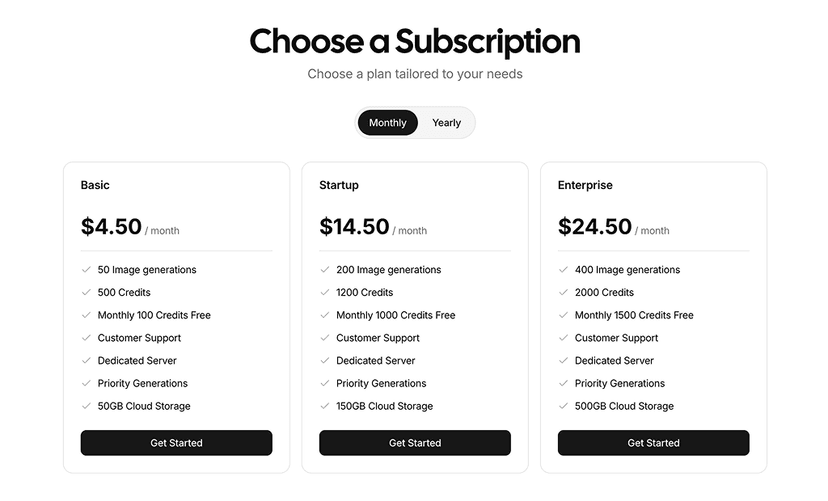
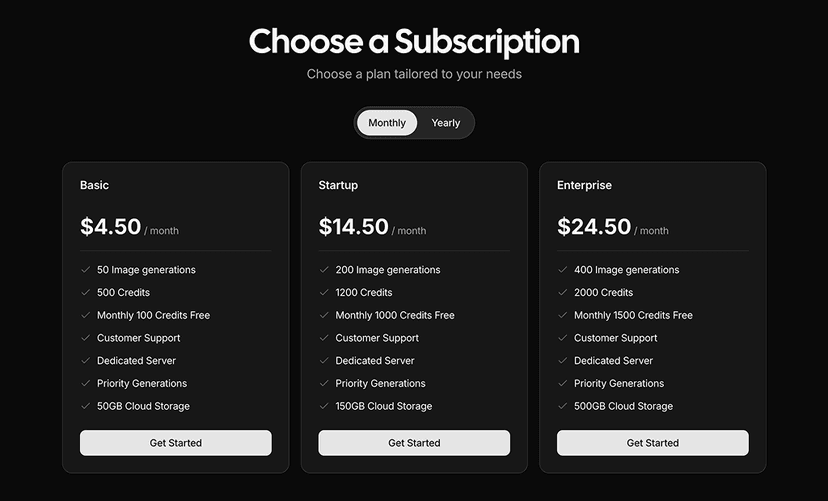

Shadcn Radio Group Component
The Shadcn Radio Group is a set of options where users can pick exactly one. Billing periods, shipping methods, payment types and pricing plans are all classic radio group questions: every option is visible at once, so users can compare them before they choose.
Plan pickers, star ratings, color swatches, tile grids and bordered option cards show what a shadcn radio group can do beyond a plain vertical list. Every example is built with shadcn/ui, React and Tailwind CSS, works with both Radix UI and Base UI primitives and supports dark mode.
What is the Shadcn Radio Group Component?
A radio group manages one value for a set of items. Selecting an item clears the previous one, the arrow keys move between options and select them, and only one tab stop is used for the whole group. The shadcn/ui version renders custom styled buttons instead of native radio inputs, but keeps the same semantics, and it still submits its value with a regular HTML form when you give it a name.
Use a radio group for two to about seven options that users should see side by side. When there are many options or space is tight, a Select takes up less room. When users can choose more than one option, use a Checkbox for each, and for a single on and off setting, a Switch is clearer than two radios.
Anatomy of the Shadcn Radio Group
| Part | Description |
|---|---|
| RadioGroup | The root. Holds the selected value through value or defaultValue, reports changes with onValueChange, and accepts name, required, disabled and orientation. |
| RadioGroupItem | One option with a unique value. It renders the circle and its dot indicator, and exposes data-state="checked" for styling. Pair it with a Label through id and htmlFor. |
15 Shadcn Radio Group Variants
Each radio group variant listed here is previewed live at the top of this page, together with its source code and install command.
- Vertical, horizontal and colored: Basic lists of labeled options in a column or a row, plus a version that recolors the primary color with CSS variables.
- With descriptions: Options with a helper line under each label, linked to the radio with aria-describedby for screen readers.
- Expandable option: Choosing home delivery reveals and focuses an address input, while the pick up option keeps the form short.
- Rating and color swatches: Star rating filters with counts, an interactive five star rating input, and color swatches for product options.
- Card options: Bordered cards in horizontal and vertical layouts that highlight when checked, region chips with a visible radio, and pricing cards with a price badge and a feature list.
- Tile grids: Visually hidden radios inside clickable tiles for payment methods and for CPU sizes with a disabled option.
- Stacked plan list: Joined rows for subscription plans with prices on the right and a Popular badge on the recommended plan.
How to Install the Shadcn Radio Group Component
Set up shadcn/ui in your project if you have not already, then add the Shadcn UI Kit registry to your components.json once:
{
  "registries": {
    "@shadcnuikit": "https://shadcnuikit.com/r/{name}.json"
  }
}
Then install a radio group variant by its name:
npx shadcn@latest add @shadcnuikit/radio-group1The same command works with pnpm dlx, yarn dlx and bunx --bun. Each variant has a copy button for every package manager, and the code is added to your project as plain React and Tailwind CSS that you can edit freely.
How to Use the Shadcn Radio Group Component
Import RadioGroup and RadioGroupItem, give every item a unique value, and connect each item to a label with matching id and htmlFor.
import { Label } from "@/components/ui/label"
import { RadioGroup, RadioGroupItem } from "@/components/ui/radio-group"

export function BillingPeriod() {
  return (
    <RadioGroup defaultValue="monthly" name="billing">
      <div className="flex items-center gap-2">
        <RadioGroupItem value="monthly" id="monthly" />
        <Label htmlFor="monthly">Monthly</Label>
      </div>
      <div className="flex items-center gap-2">
        <RadioGroupItem value="yearly" id="yearly" />
        <Label htmlFor="yearly">Yearly (save 20%)</Label>
      </div>
    </RadioGroup>
  )
}
Why Use the Shadcn Radio Group Component
- All options visible: Users compare every choice without opening a menu, which speeds up decisions with a few options.
- Accessible by default: Roles, checked state, roving focus and arrow key selection come from the primitive.
- Works with forms: A
nameprop makes the value part of native form submissions, andrequiredis supported. - Flexible layouts: The same item works as a small circle, a hidden control inside a card, or a color swatch.
- Easy to style: The checked state is a data attribute, so parent cards can react to it with Tailwind has- variants.
Common Radio Group Use Cases
- Pricing and plans: Choosing between Starter, Pro and Business plans with prices and feature lists.
- Checkout: Payment methods and shipping options, where some choices reveal extra fields.
- Product options: Colors, sizes and configurations on product pages, often as swatches or tiles.
- Filters: Single choice filters such as minimum rating or price range in a sidebar.
- Surveys and ratings: Star ratings and single answer questions in feedback forms.
- Settings: Notification channels, theme choices and infrastructure options like regions or machine sizes.
Customizing the Shadcn Radio Group
Change the circle size, border and color with classes on RadioGroupItem, and change the layout with classes on RadioGroup, which is a CSS grid by default. For card options, make the card itself a label for the item, so a click anywhere on it selects the option, and style it with has-data-[state=checked]: classes. In this kit RadioGroupItem is position: relative, so an after:absolute after:inset-0 overlay on the item only covers the circle, not the card. Colors come from your theme, which you can generate with the free Theme Generator.
A clickable card option looks like this:
<RadioGroup defaultValue="pro">
  <Label
    htmlFor="plan-pro"
    className="gap-3 rounded-lg border p-4 has-data-[state=checked]:border-primary"
  >
    <RadioGroupItem value="pro" id="plan-pro" />
    Pro, $29/mo
  </Label>
</RadioGroup>
Radio Group Accessibility and Keyboard Support
The radio group follows the WAI-ARIA radio group pattern. The root has role="radiogroup", each item has role="radio" and aria-checked, and the group is a single tab stop that lands on the checked item. Give the group a visible title, ideally with a fieldset and legend, so screen readers announce the question before the options.
When a radio is visually hidden inside a tile or a star, keep a text label for it with a label element, an aria-label or sr-only text, as the rating and swatch variants on this page do.
| Key | Action |
|---|---|
| Tab | Moves focus to the checked item, or the first item if none is checked. |
| ShiftTab | Moves focus out of the group to the previous element. |
| Space | Checks the focused item if it is not already checked. |
| ArrowDown | Moves focus to the next item and checks it. |
| ArrowRight | Moves focus to the next item and checks it. |
| ArrowUp | Moves focus to the previous item and checks it. |
| ArrowLeft | Moves focus to the previous item and checks it. |
Radio Group Best Practices
- Select a sensible default when one option is clearly the most common, so users can move on quickly.
- Keep option labels short and parallel, and put details in a description line below.
- Order options logically, for example by price or from smallest to largest.
- Use a fieldset and legend to title the group instead of a plain paragraph.
- Switch to a Select when you have more than about seven options.
- Make the whole card clickable in card layouts, not only the small circle.
Components Related to Radio Group
Shadcn Radio Group FAQ
Looking for something else? Browse all shadcn/ui components or ready-made UI blocks built with them.