Shadcn Product Quickviews Blocks

Showcase your product's key features and benefits with beautifully designed shadcn/ui product quickviews components. These components showcase your product's value proposition using icons, visual elements, and compelling descriptions that help customers understand why they should choose your product. Perfect for product pages and marketing sites.

Product Quickview 1 Pro

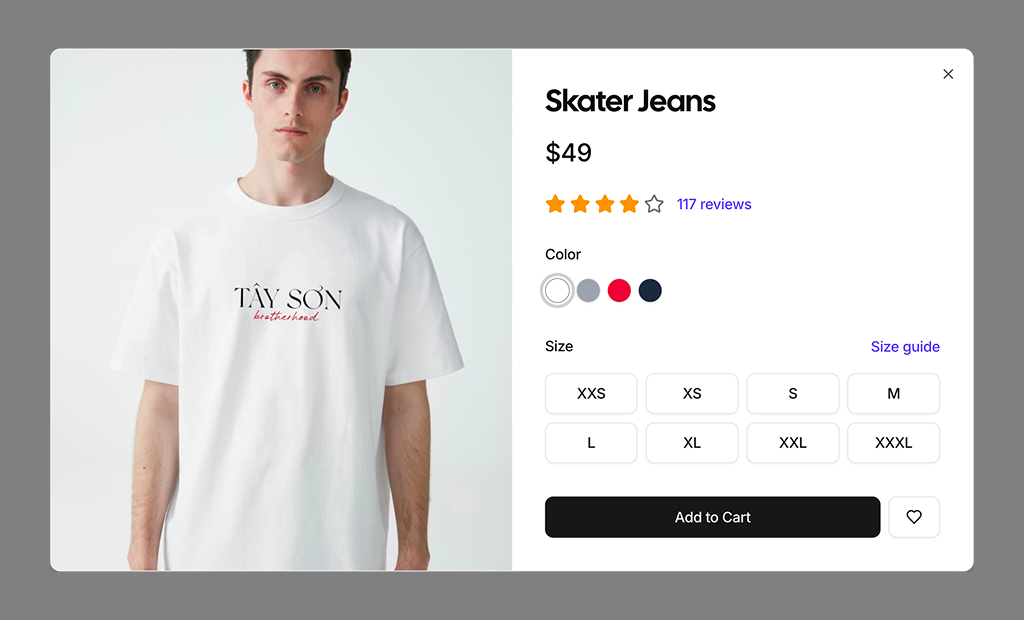
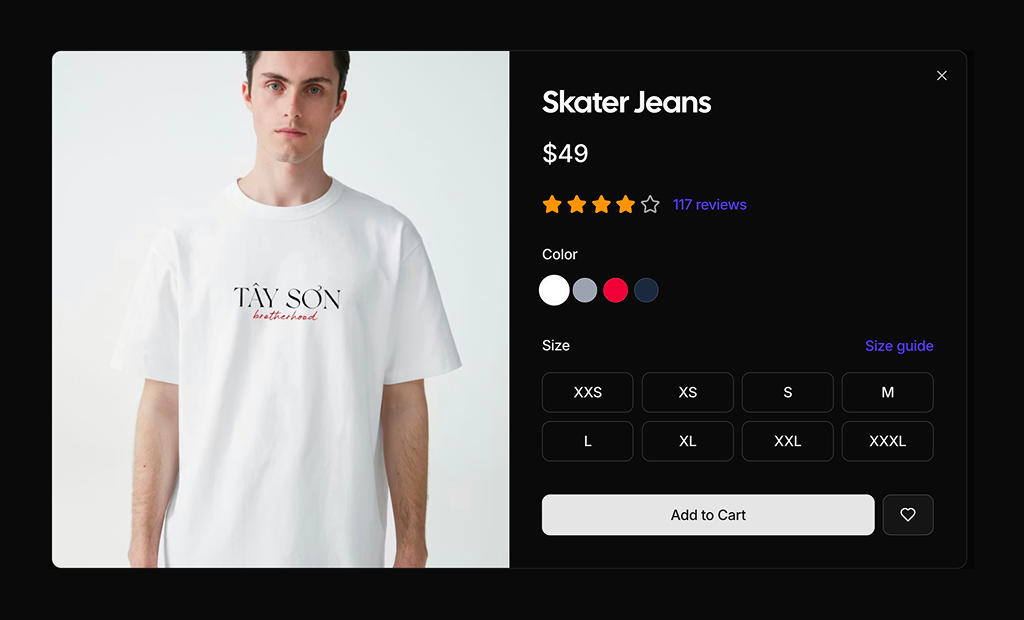
Product card with Quick View button that opens a wide two-column dialog with image, title, price, star rating, color swatch radios, eight size tiles, Size guide link, Add to Cart and wishlist.

Product Quickview 2 Pro

Product card with Quick View button that opens a compact dialog with wishlist button on the image, sale and original price, rating, description, color and size radios and a quantity stepper with Add to Cart.

About Shadcn Product Quickviews Blocks

A product quickview opens the key details of a product in a modal right on the listing page, so shoppers can check the price, pick a color and size and add it to the cart without loading the full product page. These two shadcn quickview blocks offer a wide two column layout and a compact single column layout with quantity controls.

Like the rest of our shadcn blocks, both are written in React and TypeScript, styled with Tailwind CSS and built from shadcn ui components such as Dialog, RadioGroup, Button, ButtonGroup and Input. Each block ships a sample product card with a Quick View button and a separate dialog component that takes the product as a prop, so you can reuse the shadcn components across your whole catalog.

Key Elements of a Product Quickview

  • Product image: a large photo that fills one side or the top of the dialog.
  • Price and rating: the current price, an optional original price and stars with a link to the reviews.
  • Variant selection: color swatches and size tiles, with a Size guide link.
  • Quantity: plus and minus controls when shoppers often buy more than one.
  • Purchase actions: an Add to Cart button and a wishlist button.

Where and Why to Use Product Quickview Blocks

Every page load between a listing and the cart is a chance for a shopper to lose interest. A quickview keeps the listing in place, so shoppers can check several products in a row and only open the full page when they need every detail. Because the dialogs are plain shadcn components styled with Tailwind CSS, they match the cards and grids of your shadcn ui store.

  • Category and search pages: preview a product from the grid without losing the scroll position.
  • Fashion stores: choose a color and size before adding to the cart.
  • Sale pages: show the reduced price next to the original price in a compact dialog.
  • Homepage product rows: let visitors act on featured items directly.
  • Wishlists and recently viewed lists: reopen a saved item and move it to the cart.

Product Quickview Blocks in This Collection

  • Product Quickview 1: Best for desktop focused stores and products with many sizes, since the wide dialog shows the photo and all options side by side.
  • Product Quickview 2: A better fit for sale items and mobile traffic, with the discount and a short pitch visible and the quantity chosen in the same step.

Similar Block Categories

Accessibility

The dialogs use the shadcn Dialog, which traps focus while open and closes with Escape or the labelled Close button. Color and size choices are grouped in fieldsets with a legend and use RadioGroup, so they can be changed with the arrow keys, and every color swatch has an aria-label such as “Select Navy color”. In Product Quickview 2 the wishlist button and the quantity buttons and input carry aria-labels.

Consider adding a DialogTitle, visually hidden if needed, so screen readers announce the product name when the dialog opens. The wishlist button in Product Quickview 1 needs an aria-label, and the sample cards place the Quick View button inside a link, which you may want to separate so each control has a single purpose. Sizes marked as unavailable in the data are not disabled yet.
Product Quickviews FAQ

A product quickview is a modal that opens from a product card in a listing and shows the essentials of that product: image, price, rating, color and size options and an Add to Cart button. Shoppers can choose a variant and buy without leaving the category page.

They are ready-made quickview modals built with the shadcn ui Dialog, RadioGroup and Button components and styled with Tailwind CSS. Each block includes a sample product card with a Quick View button and the dialog it opens.

Opening every product page and going back to the listing is slow, especially on large catalogs. A quickview lets shoppers compare details and pick a size in place, which keeps them browsing and shortens the path from listing to cart.

Product Quickview 1 is a wide two column dialog with the image on the left and the options on the right, and eight sizes in a four column grid. Product Quickview 2 is a narrow single column dialog with the image on top, a sale price next to the original price, a short description and a quantity selector.

Each block defines a productData object in index.tsx with title, price, rating, reviewCount, image, colors and sizes, and Product Quickview 2 adds description and old_price. The dialog in product-quickview-modal.tsx receives it through the product prop, so you can pass any product from your listing.

Both use the shadcn RadioGroup inside a fieldset with a legend. Colors are round RadioGroupItem swatches whose background comes from each color value. Sizes are labels that wrap a hidden RadioGroupItem, so the whole tile is clickable and shows a highlighted border when checked.

The dialog is controlled by open and onOpenChange props. Keep one open state and a selected product in your grid, set them in the Quick View button handler and render a single ProductQuickviewDialog. In the demos the dialog starts open, so set the initial state to false in your store.

Product Quickview 2. A ButtonGroup with minus and plus buttons and a numeric input sits next to Add to Cart. The minus button is disabled at one, and typed values below one or non numeric input fall back to one.

Product Quickview 1 stacks its image above the details below the medium breakpoint and widens to a 4xl dialog from the small breakpoint. Product Quickview 2 is already a single column, with a 384 pixel tall image and a dialog limited to md width.

No. Both product quickview blocks are part of All Access, the one-time license that also unlocks every other block, admin dashboard and template with lifetime updates.
shadcn product quickviews blocks
Unlock Premium Blocks & Sections
Premium blocks are part of All Access. One license unlocks the whole Shadcn UI Kit, so you can build complete pages and products instead of single sections.
  • 550+ blocks for landing pages, stores, dashboards and apps
  • 16 admin dashboards and 17 ready-made apps
  • 5 premium Next.js website templates
  • 560+ component variants and 70+ examples
  • Install with the shadcn CLI or from your AI editor through the MCP server
  • Lifetime updates, including every new block we release
Unlock Now

One-time payment, no subscription.