About Shadcn Sidebar Layouts Blocks
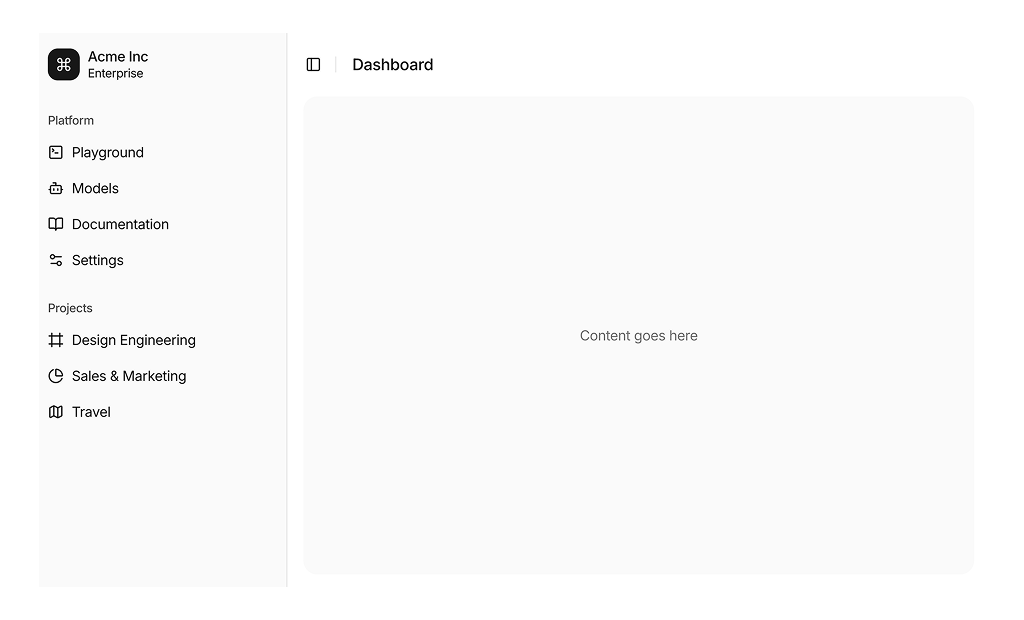
A sidebar layout keeps an app’s navigation in a vertical column next to the content, so every section stays one click away. This shadcn sidebar layout block gives you that frame with a brand button, grouped links, a collapsible sidebar and a header with a toggle, ready for your own pages.
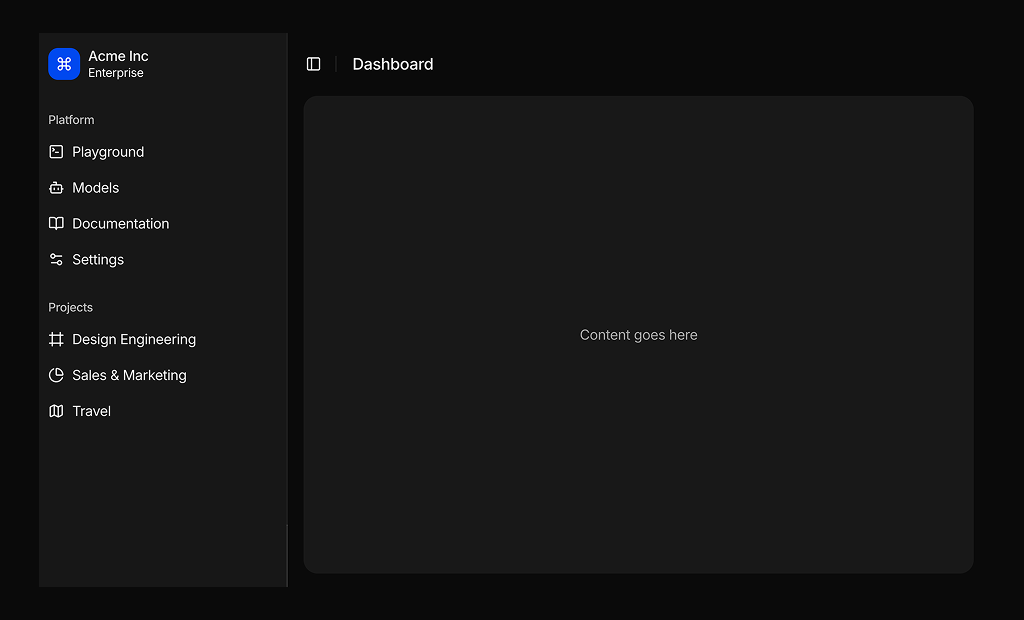
It is built in React and TypeScript with shadcn ui components such as Sidebar, ScrollArea, Collapsible and Separator, and styled with Tailwind CSS theme tokens. Like our other shadcn blocks it follows your light and dark theme, and the content area is left empty so you can combine it with any shadcn components you already use.
Key Elements of a Sidebar Layout
- Brand or workspace button: a logo and name at the top that anchors the navigation.
- Grouped links: labelled groups such as Platform and Projects that make long lists scannable.
- Scrollable body: a scroll area so many links never push the layout out of shape.
- Toggle: a trigger in the header that hides the sidebar when users need more room.
- Content region: a flexible inset area for the page itself.
Where and Why to Use Sidebar Layout Blocks
Most dashboards end up with more sections than fit in a header. A sidebar handles that growth gracefully and gives users a stable place to return to. Using the shadcn Sidebar means keyboard toggling, a mobile sheet and saved open state come with the component instead of being written by hand.
- Admin dashboards: list resources such as users, orders and settings in one column.
- Project tools: keep a Projects group under the main links for quick switching.
- AI playgrounds: the sample links for Playground, Models and Documentation map directly to this use.
- Internal tools: a plain, predictable frame for staff facing apps.
Sidebar Layout Blocks in This Collection
- Sidebar Layout 1: Pick it when you want a classic edge to edge sidebar rather than an inset panel, and a simple page title in the header. It is a solid base for adding nested menus or an icon rail later.
Similar Block Categories
- Page Layouts: an inset sidebar version with a breadcrumb, plus two top navigation layouts.
- Dashboard Shell: sidebars with icon rails, workspace switchers, search and inbox popovers.
- Tables: the most common content to place next to a sidebar.
- Empty State: show a helpful message while a new section has no data yet.
Accessibility
The shadcn SidebarTrigger renders a button with a “Toggle Sidebar” screen reader label, and the sidebar can also be toggled with Cmd or Ctrl plus B. Every navigation item is a real link inside a list, so it is reachable with the Tab key and announced as a link. On phones the sidebar opens as a sheet that traps focus until it is closed.
When you add nested items, the chevron button already carries a sr-only “Toggle” label. Consider making that label specific, for example “Toggle Settings submenu”, and mark the current page link with aria-current so screen reader users hear where they are.
Sidebar Layouts FAQ
items array of title and url pairs and it renders a chevron that expands a submenu through the Collapsible component. Set isActive on the item to open that submenu by default. The sample data has no nested items, so no chevrons show yet.collapsible="icon" to the Sidebar in app-sidebar.tsx to keep a narrow icon rail instead. The menu buttons already have tooltips, and the Projects group is set to hide in icon mode.