Shadcn Pricing Tables Sections

Professional pricing table components built with shadcn/ui to showcase your product plans and pricing tiers. These modern pricing designs feature clear feature comparisons, highlighted popular plans, and strategic call-to-action buttons that boost conversions and drive sales. Perfect for SaaS and subscription-based businesses.

Pricing Table 1 Pro

Centered header with two monthly plan cards. The Growth card has a primary ring and Most popular badge. Each card lists checked features, a full width link button and sits above a 14-day trial note.

Pricing Table 2 Pro

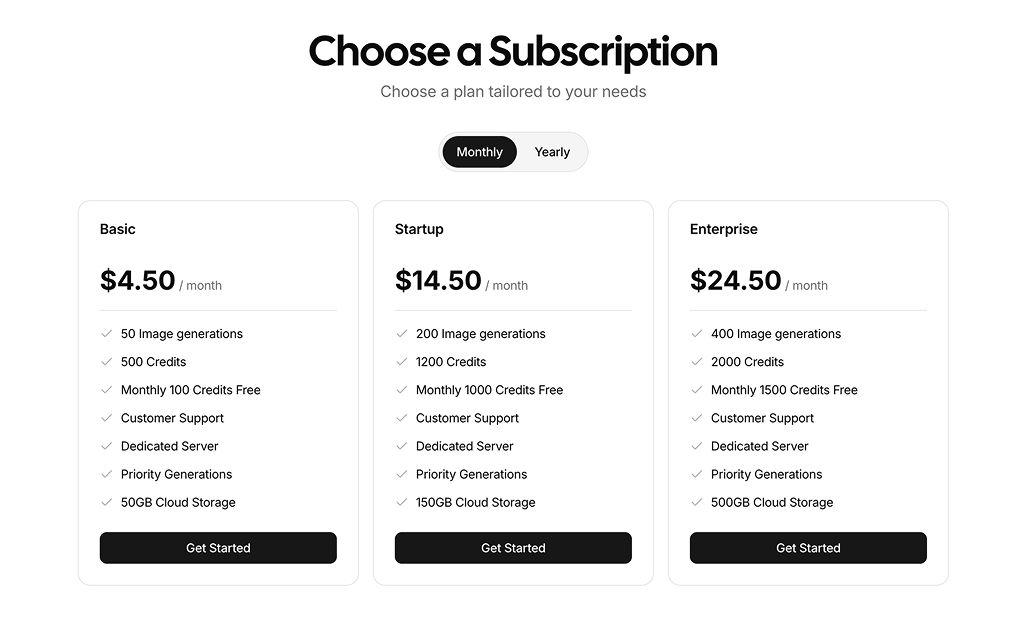
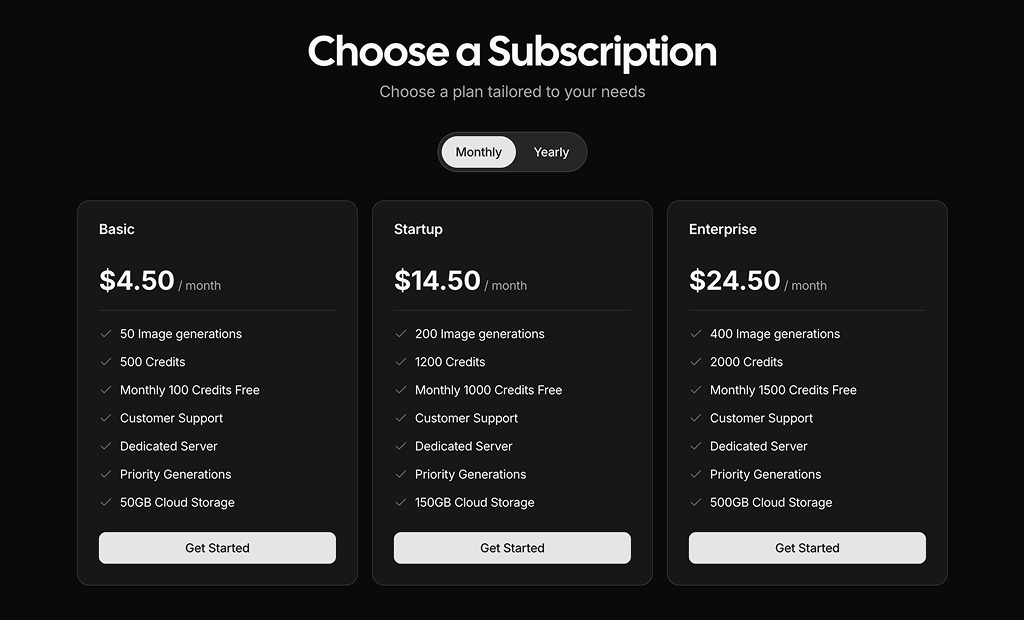
Three plan cards with a Monthly and Yearly tab switch showing a -20% badge. Prices and the billing note update per cycle, and excluded features appear struck through with an X icon.

Pricing Table 3 Pro

Header with Monthly and Annual tabs above three plan cards, followed by a Compare features table of values, checks and dashes. On mobile the table becomes tabs showing one plan at a time.

Pricing Table 4 Pro

Billing tabs above a two column layout: a radio list of four plans with seats and monthly price, and a detail card showing the selected plan's price, features and a Choose or Contact sales button.

Pricing Table 5 Pro

Two column intro with a heading, text and a Book a demo button. Below, two service subscription cards with two column feature lists, the popular one in inverted primary colors.

Pricing Table 6 Pro

Billing tabs and a team size slider from 5 to 50 users in a muted panel. Four plan cards show the total monthly price for that team, the per user rate and a feature checklist.

Pricing Table 7 Pro

License type select in a side card next to three package cards with current price, struck original price and a calculated Save badge. A package comparison table with info tooltips follows below.

Pricing Table 8 Pro

Comparison grid of three plans with prices at the top, nine feature rows of text, check and minus icons, and a Get started button per column. The Team column is raised. Mobile uses plan tabs.

Pricing Table 9 Pro

Three one-time branding package cards with an icon, title, description, price and checklist. The middle package is taller, filled with the primary color and carries a Most popular badge.

Pricing Table 10 Pro

Muted section with a Monthly and Annually switch and Save 20% badge. One card holds four plans side by side with large prices, dot bullet features and a Choose button, the popular plan tinted.

Pricing Table 11 Pro

Free and Pro plan cards side by side. The Pro card is filled with the primary color, overlaps the free card on desktop and has a Best for teams badge and trial button.

Pricing Table 12 Pro

Hosting comparison table with four plans, the Business column header and footer filled with the primary color. Rows show storage, SSL, backups and domains, with a sticky feature column on small screens.

Pricing Table 13 Pro

Split card with two selectable plan radio cards and a free trial button whose length and price note follow the selection. The right half lists five included features with short explanations.

Pricing Table 14 Pro

Four subscription cards with Monthly and Annual tabs. Regular cards use dashed borders, the popular card is filled with the primary color and soft chart color glows. Each has a Subscribe button.

Pricing Table 15 Pro

Four plans from Free to Studio with Monthly and Yearly tabs. Cards show yearly discount badges, the billed amount, a Get started button, usage limits with icons and features. The popular plan has a ribbon.

About Shadcn UI Pricing Table Blocks

A pricing table compares the plans or packages of a product so visitors can see the price, the limits and the next step in one view. These twenty shadcn pricing blocks cover the layouts most products need: plan cards, billing switches, seat based calculators, license selectors, interactive plan pickers and detailed comparison tables.

Like the rest of our shadcn blocks, each one is written in React and TypeScript with Tailwind CSS and built from shadcn ui components such as Card, Tabs, Table, RadioGroup and Slider. Plans live in plain arrays, so changing a price or a feature is a one line edit. Every layout is responsive and follows your light and dark theme, which keeps these shadcn components consistent with the rest of your site.

Key Elements of a Pricing Table

  • Plan name and audience: a short name and one line that says who the plan is for, such as freelancers or growing teams.
  • Price and billing period: a large price with “per month”, “one-time” or the yearly total next to it.
  • Included features: a checklist or comparison rows that make the difference between plans easy to scan.
  • Recommended plan: a badge, ring or inverted color that steers visitors to the plan most of them should pick.
  • Billing switch: a monthly and yearly control that shows the saving of an annual commitment.
  • Clear call to action: one button per plan, plus a note on free trials, refunds or credit card requirements.

Where and Why to Use Pricing Table Blocks

Pricing is the step where interest turns into a decision, and a table that is hard to read sends visitors away to compare competitors. A good pricing section answers what each plan costs, what it includes and which one to choose without extra clicks. Because these blocks use the same shadcn ui components and Tailwind CSS tokens as the rest of your pages, the section looks native to your product from the start.

  • SaaS pricing pages: plan cards with a billing switch at the top and a comparison table below.
  • Team and seat based products: a calculator that shows the real monthly cost for the size of the team.
  • Digital products and licenses: one-time prices with discounts and a license type selector.
  • Agencies and studios: fixed price service packages or monthly design subscriptions.
  • Hosting and infrastructure: detailed comparison tables with limits such as storage, rules or retention.
  • Freemium apps: a free plan next to a paid plan to make the upgrade path obvious.

Pricing Table Blocks in This Collection

  • Pricing Table 1: A good default when you sell two tiers and want a trial message under them. It needs no state, so it drops into any server rendered page.
  • Pricing Table 2: Shows clearly what a cheaper plan leaves out, which helps upsell the middle tier. Its data lives in a separate file.
  • Pricing Table 3: For buyers who want details before choosing. The comparison stays readable on phones because it turns into one tab per plan.
  • Pricing Table 4: Fits products with four or more tiers, since only the chosen plan is shown in full and the list stays short.
  • Pricing Table 5: Made for monthly service retainers, such as a design or content subscription, with a demo booking next to the intro.
  • Pricing Table 6: Use it when price depends on seats. Visitors see their own total instead of doing the math from a per user rate.
  • Pricing Table 7: Suits UI kits, templates and software sold once, where personal, team and enterprise licenses change the price of every package.
  • Pricing Table 8: A comparison first layout for three tiers that differ in many limits. Prices and buttons sit at the top and bottom of each column.
  • Pricing Table 9: Works for agencies selling fixed scope projects like branding, with the most complete package placed in the center.
  • Pricing Table 10: Keeps four plans compact in a single panel, a good choice when the section sits on a busy homepage.
  • Pricing Table 11: A freemium layout where the paid plan overlaps the free one, so the upgrade stands out without extra copy.
  • Pricing Table 12: Built for hosting and infrastructure offers with four tiers and many technical limits to compare.
  • Pricing Table 13: Leads with a free trial. Choosing a plan changes the trial length on the main button, while the shared features stay visible beside it.
  • Pricing Table 14: A playful option for creative products and template subscriptions, with a colorful glow behind the featured plan.
  • Pricing Table 15: Fits usage based products where limits like sites, uploads or visits matter as much as features. Yearly discounts are calculated per plan.
  • Pricing Table 16: Saves space by revealing plan details only on demand, which works well next to a short pitch.
  • Pricing Table 17: For stores that sell more than one product line and want to push a bundle that includes everything.
  • Pricing Table 18: Handles long feature lists by grouping them into categories, with a short explanation available on every feature name.
  • Pricing Table 19: A head to head comparison of two plans, useful for marketplaces and memberships where one extra feature justifies the higher price.
  • Pricing Table 20: A clean free versus paid pair with a full width action under each card, suited to developer tools and UI kits.

Similar Block Categories

  • FAQs: answer billing, refund and plan change questions right below the prices.
  • Feature Sections: explain the product value before visitors reach the plans.
  • Testimonials: add customer proof near the pricing to reduce purchase doubts.
  • Call to Action: close the pricing page with a final prompt to start a trial.
  • Checkout Page: the step that follows once a visitor picks a plan.

Accessibility

The comparison tables in Pricing Table 3, 8, 12 and 19 pair their check and minus icons with screen reader text that reads “Included” or “Not included”, and Pricing Table 18 sets the same words as aria-label on its icons. Pricing Table 12 and 19 also give the empty corner header a hidden “Feature” label. Interactive controls are labelled: the plan RadioGroup in Pricing Table 4 has an aria-label and each option is a Label tied to its radio, the Slider in Pricing Table 6 has an aria-label and a visible Team size label, the billing Switch in Pricing Table 10 has an aria-label and clickable text on both sides, and the info buttons in Pricing Table 7 are named “About” plus the feature.

Tabs, radio groups, the Select, the Accordion and the tooltips come from shadcn ui and support keyboard use and visible focus out of the box. The glow behind the featured plan in Pricing Table 14 is marked aria-hidden. When you add your own plans, consider keeping the recommended plan marked with text such as a “Popular” badge and not only with color, and give the radio group in Pricing Table 13 an aria-label like the one in Pricing Table 4.

Pricing Tables FAQ

A pricing table is a section that lists the plans or packages of a product with their prices, what each one includes and a button to choose it. It lets visitors compare options in one place and pick the plan that fits their needs and budget.

They are ready-made pricing sections built with shadcn ui components and Tailwind CSS. This collection has twenty of them, from simple two plan cards to billing toggles, seat calculators, license selectors and full feature comparison tables.

The pricing page is where a visitor decides whether to buy. A clear table removes doubts about cost and limits, points people to the plan you recommend and gives each plan a direct next step, which shortens the path from interest to sign up.

A plan name, the price with its billing period, a one line summary of who the plan is for, the included features or limits and a call to action per plan. A highlighted recommended plan, a billing switch and a note on trials or refunds help as well.

On a dedicated pricing page, on the homepage after the features and testimonials, inside upgrade screens of a product and on landing pages for a single offer. Detailed comparison tables fit best on the pricing page itself, below the plan cards.

Pricing Table 2, Pricing Table 3, Pricing Table 4, Pricing Table 6, Pricing Table 14 and Pricing Table 15 switch the billing period with Tabs, and Pricing Table 10 uses a Switch with labels on both sides. Most blocks store both prices per plan, while Pricing Table 10 calculates the yearly price from an ANNUAL_DISCOUNT constant of 0.2.

Pricing Table 3 and Pricing Table 7 place a comparison table under their plan cards. Pricing Table 8, Pricing Table 12 and Pricing Table 19 are comparison tables on their own with prices and buttons inside the columns, and Pricing Table 18 splits a larger comparison into category tabs.

Pricing Table 3 and Pricing Table 8 hide the wide table below the md breakpoint and show one plan at a time in Tabs instead. Pricing Table 12 keeps the feature column sticky while the plan columns scroll sideways. Pricing Table 7 and Pricing Table 18 give the table a minimum width of 640px so it scrolls horizontally, and Pricing Table 19 narrows its two plan columns and hides the Recommended badge on small screens.

Pricing Table 6. A Slider from 5 to 50 users in steps of 5 sets the team size, and every card multiplies its per user price by that number. The limits come from the MIN_USERS and MAX_USERS constants and prices are formatted as US dollars with Intl.NumberFormat.

Pricing Table 7 sells licenses: a Select changes the license type and every package shows the current price, the crossed out original price and a Save badge that is calculated from both. Pricing Table 9 lists fixed price service packages and Pricing Table 17 shows product plans with a one-time label.

Pricing Table 11 and Pricing Table 20 pair a free plan with one paid plan, and Pricing Table 15 starts its four tiers with a Free plan that reads “Free forever, upgrade any time”. Pricing Table 1 and Pricing Table 13 do not have a free tier but promote a free trial instead.

Pricing Table 4 uses a RadioGroup of plans and fills a detail card with the selected plan, including a Contact sales state for Enterprise. Pricing Table 13 uses two radio cards and updates the trial button text and the price note from the selected plan. Pricing Table 16 opens one plan at a time in an Accordion.

Every block keeps its plans in an array at the top of index.tsx, and Pricing Table 2 and Pricing Table 3 move it into a separate data.ts file. Each plan has a name, price, description and features, plus a flag such as popular, featured, highlighted or recommended that controls which plan is emphasized.

Most blocks render the button as an anchor with href="#" through the asChild prop, so you only replace the href with your checkout or sign up URL. Pricing Table 2, Pricing Table 3, Pricing Table 4, Pricing Table 5, Pricing Table 6 and Pricing Table 7 use plain buttons for the plan action, so wrap them with a Link through asChild or add an onClick that starts your payment flow.
No. They only use shadcn ui components and lucide-react icons. Depending on the block that means Card, Badge, Button, Separator, Tabs, Table, Label, RadioGroup, Slider, Select, Switch, Accordion, Tooltip and ScrollArea. None of them use an animation library.

No. All twenty pricing table blocks are part of All Access, the one-time license that also unlocks every other block, admin dashboard and template with lifetime updates.
shadcn pricing tables sections
Unlock Premium Blocks & Sections
Premium blocks are part of All Access. One license unlocks the whole Shadcn UI Kit, so you can build complete pages and products instead of single sections.
  • 550+ blocks for landing pages, stores, dashboards and apps
  • 16 admin dashboards and 17 ready-made apps
  • 5 premium Next.js website templates
  • 560+ component variants and 70+ examples
  • Install with the shadcn CLI or from your AI editor through the MCP server
  • Lifetime updates, including every new block we release
Unlock Now

One-time payment, no subscription.