About Shadcn UI Product List Blocks
A product list presents a set of products as cards in a grid, a row or a slider, so shoppers can compare images, names and prices before they open a product page. These eight shadcn product list blocks cover the layouts most stores need: simple shelves, cards with Add to Cart, a sortable catalog with a grid or list toggle, filterable grids and two carousels.
Like the rest of our shadcn blocks, they are written in React and TypeScript with Tailwind CSS and use shadcn ui components such as Card, Button, Badge, Carousel, Tabs, Select and InputGroup. Products live in a plain array in each file, so you can swap in your own catalog or API data without touching the layout, and the shadcn components follow your light and dark theme.
Key Elements of a Product List
- Consistent images: one aspect ratio for every card (square or 3:4 in these blocks), so the grid stays even.
- Name and price: always in the same position, with a struck through original price when an item is on sale.
- A clear action: Add to Cart, View or a plus button that leads to the next step without extra clicks.
- Browsing controls: category tabs, a search field or a sort menu for catalogs that are longer than one screen.
- Trust signals: star ratings, order counts, review counts and badges such as New or Double Points.
- A path to more: a See all products or View all link when the list only shows a selection.
Where and Why to Use Product List Blocks
Shoppers decide which product page to open by scanning a list. A well structured product list keeps that scan fast, shows prices up front and lets visitors act on an item directly from the card. Because these are regular shadcn components styled with Tailwind CSS, the lists match the rest of your shadcn ui storefront, from the header to the cart.
- Category and collection pages: filterable grids with tabs or pills let shoppers narrow a collection without a page reload.
- Homepage shelves: New Season, Trending or New Arrival rows that link to the full collection.
- Marketplace catalogs: list cards with seller name, order count and discount fit stores with many vendors.
- Gift and campaign pages: a slider of promoted items with badges for a limited time offer.
- Related products: a compact carousel below a product page or in the cart.
- Search results: a searchable grid with a live result count.
Product List Blocks in This Collection
- Product List 1: A lightweight server component for a homepage shelf where the whole card should open the product. Good when you only need a few items and a link to the full catalog.
- Product List 2: Use it when shoppers should add items straight from the grid. It is the only list that already wires cart and favorite callbacks, which makes it a quick starting point for a working store.
- Product List 3: Built for marketplaces and larger catalogs where people compare discounts, ratings and sellers, and want to choose between a dense list and a visual grid.
- Product List 4: A campaign slider for seasonal or gift promotions, where every card can carry a promo badge and a secondary tag.
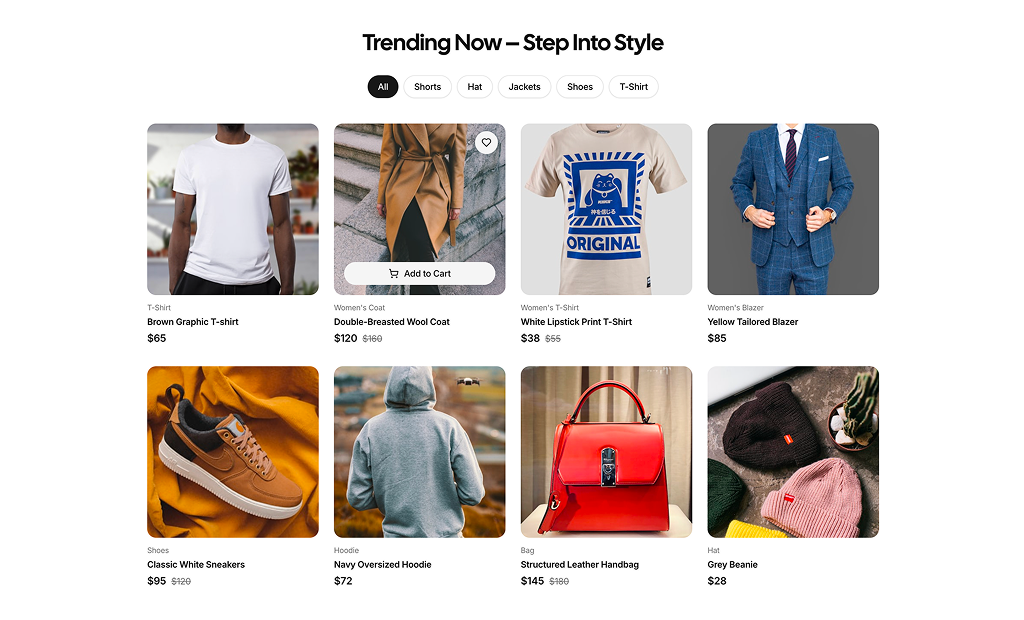
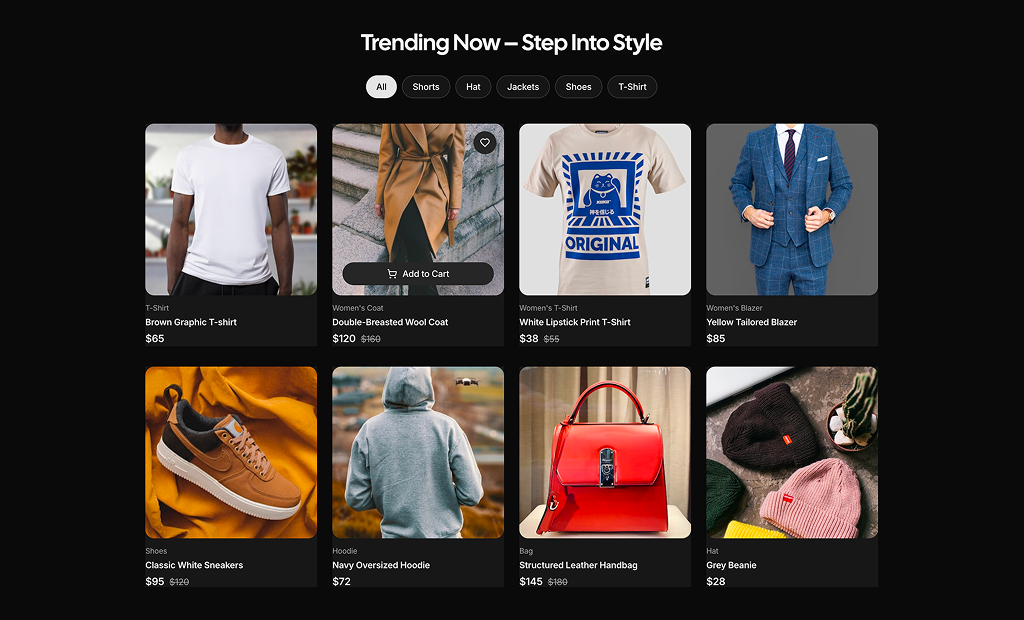
- Product List 5: A fashion style grid that keeps cards clean until hover. Pick it when imagery should dominate and filters are a short list of categories.
- Product List 6: Suits products that benefit from a second photo, such as packaging and the product itself, with category tabs for a small catalog.
- Product List 7: The choice for a catalog page that needs both category tabs and a text search, with a live count of matching products.
- Product List 8: A compact related products or new arrivals strip that fits many items in little vertical space and highlights the discount on each.
Similar Block Categories
- Product Cards: single card designs you can drop into any of these grids.
- Product Category: lead shoppers to the right collection before they reach the list.
- Product Quickviews: open product details in a dialog straight from a list card.
- Product Details: the product page each list card should link to.
- Shopping Cart: where the Add to Cart buttons of the list end up.
Accessibility
Icon-only buttons carry labels: the heart buttons use “Add to favorites” (Product List 2 switches to “Remove from favorites” when active), the plus buttons in Product List 7 say which product they add, and the slider arrows in Product List 4 and 8 have aria-labels and are disabled at the ends. Product List 3 labels its sort Select and view toggle and marks the active view with aria-pressed, and its star ratings expose the score as an aria-label. The search field in Product List 7 has an aria-label, and Product List 6 gives its category buttons the tab role with aria-selected.
A few things are worth adjusting before launch. Product List 1 reuses the same image alt text for every item, so give each product its own description. Product List 5 hides its cart and heart buttons until hover, so consider showing them on keyboard focus too, and its pill group declares the tablist role without tab roles on the buttons. Wire the cart and wishlist buttons that have no handler yet.
Product List FAQ
onAddToCart and onToggleFavorite callbacks to each card, which currently log to the console, and shows an Adding... state for half a second. In the other blocks the cart and heart buttons have no handler yet, so add an onClick that calls your cart store or API.href field. Product List 7 links the image with next/link. In the other blocks, wrap the image or the name in a Link that points to your product URL.