Shadcn Map View Blocks

Interactive map view blocks built with shadcn/ui and MapLibre: property and apartment search, store locators, delivery tracking, route planners, network status and analytics maps with markers, popups, routes and synced side panels.

Map View 1 Pro

World property map with a floating list panel: search, list or grid view, favorites toggle, type and availability filter popover, and icon markers shaded by availability that fly to each selected listing.

Map View 2 Pro

Chicago apartment search with price, unit type, floor and amenity filter popovers, a sort select, list or grid cards and rent price pill markers that open a photo popup with a save button.

Map View 3 Pro

Real estate investment map with country, type and price selects, funding status tabs with counts, a listing panel showing token price, IRR and APR, copy link and watchlist buttons, and status colored markers.

Map View 4 Pro

Audience overview map with visitor bubbles sized per city, a 24h, 7d and 30d tab switch, a users card with sparkline and device split, and lists of top pages, referrers, countries and browsers.

Map View 5 Pro

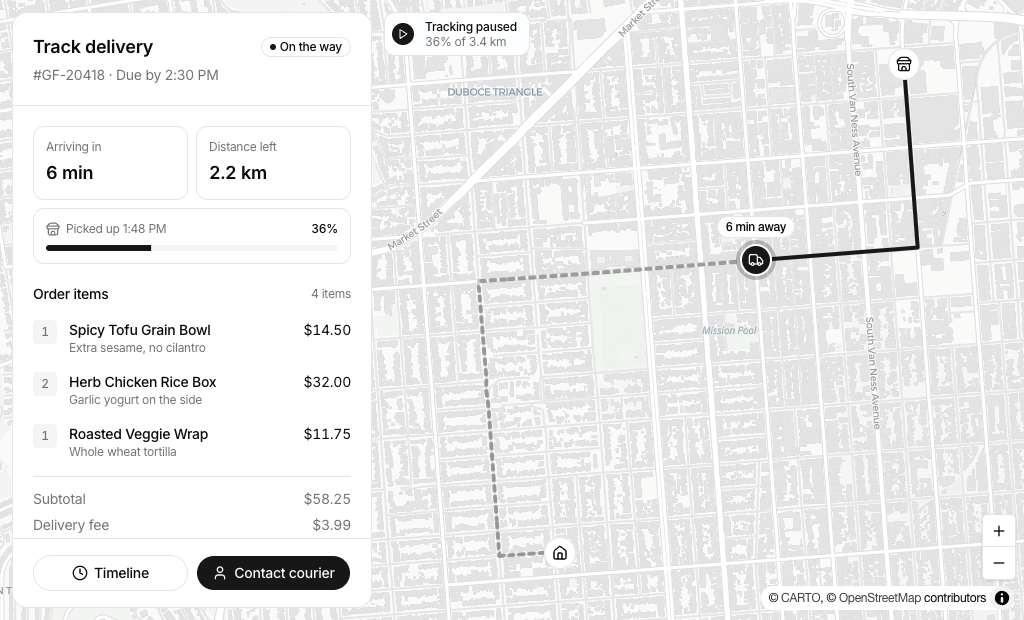
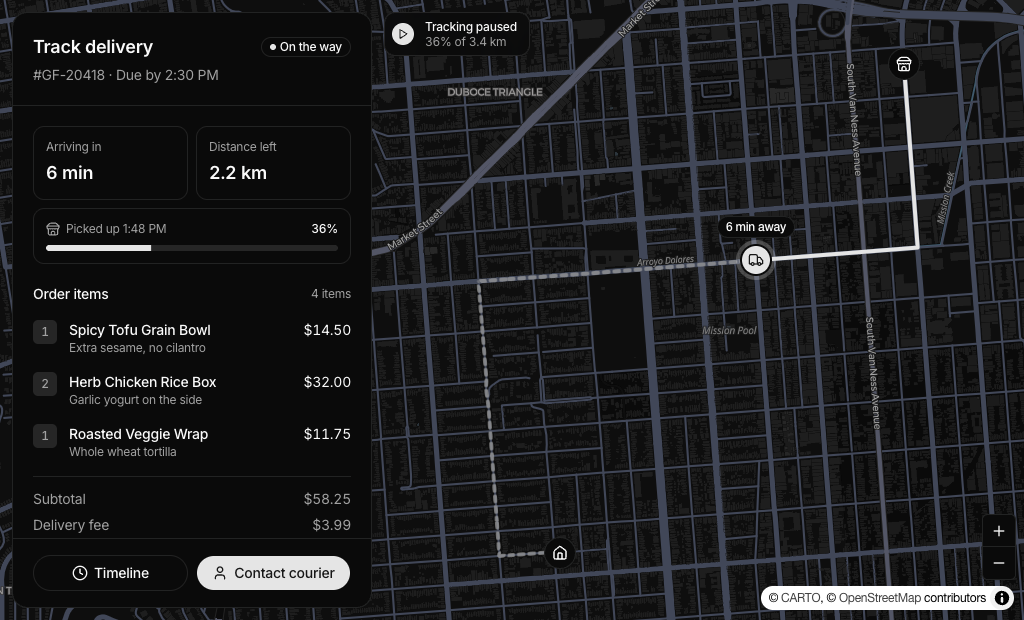
Delivery tracking panel with ETA, distance left, progress and an itemized order, a timeline sheet and courier contact popover, plus a map route split into driven and remaining parts with play controls.

Map View 6 Pro

Edge network status map with overall state, 30 day uptime and nodes up, All, Healthy, Degraded and Down filters, a location list with latency and status dot markers that open a detail popup.

Map View 7 Pro

Store locator with name or address search, an Open now toggle, store cards with hours and phone, pin markers colored by open status and a popup with a Get directions link.

Map View 8 Pro

EV charging finder with a session range select, date picker, free ports and session totals, station rows with price per kWh and a time slot booking popover, and charger markers around your location.

Map View 9 Pro

Run summary card over a map showing the route with start and finish markers, athlete and date, distance, duration and average pace, plus kilometer splits with pace bars, elevation gain and cadence.

Map View 10 Pro

Multi stop route planner with a collapsible numbered stop list, total miles and time, reorder and remove controls, an add destination popover, and numbered map markers joined by a route line.

Map View 11 Pro

Country choropleth map shading users by share of the top country, with metric and date range selects, a color legend and a ranked country list with change arrows and a View all toggle.

About Shadcn UI Map View Blocks

A map view is an app screen where an interactive map and a synced panel work together: people filter a list, the markers follow, and a click on either side reveals the details of a place. These eleven shadcn map view blocks cover property search, investment listings, store and charging locators, delivery tracking, route planning, workout recaps, network status and visitor analytics.

Like the rest of our shadcn blocks, each screen is written in React and TypeScript, styled with Tailwind CSS and assembled from shadcn ui components such as Popover, Select, Tabs, Scroll Area, Empty and Input Group. The map itself is a MapLibre GL component with free CARTO basemaps that switch with your light and dark theme, so markers, routes and panels follow the same theme tokens as your other shadcn components.

Key Elements of a Map View

  • Meaningful markers: icons, price pills, numbered stops or sized bubbles whose fill tells status at a glance.
  • A synced result panel: a list or table that highlights the selected place and scrolls to it when a marker is clicked.
  • Filters and search: inputs, selects, tabs or toggles that narrow the results and reframe the map around what is left.
  • Detail popups: a compact card on the map with the facts people need next, plus an action like directions or booking.
  • Legend and controls: zoom, compass or locate buttons and a key for every color or shape that carries meaning.

Where and Why to Use Map View Blocks

A list sorted by price cannot show that two apartments sit on the same street or that a courier is three blocks away. A map view adds that spatial context without taking the list away, which makes comparison faster and decisions easier. Building one from scratch means camera padding, marker state, popups and theme colors for a map library that does not know about Tailwind CSS. These shadcn ui blocks already solve that, so you only replace the data.

  • Real estate and rentals: search, filter and save listings while the map shows where each one is.
  • Store and service locators: help customers find the nearest open location and start directions.
  • Delivery and logistics: follow an order in real time or plan the stop order of a delivery run.
  • EV charging and mobility: show free ports, prices and a booking slot for each station.
  • Product analytics: break traffic or active users down by city and country.
  • Infrastructure monitoring: spot degraded or down regions of a CDN or server network.

Map View Blocks in This Collection

  • Map View 1: A good fit for a portfolio spread across many cities. Users can flip between a compact list and a photo grid and keep a shortlist of favorites.
  • Map View 2: Built for a single city rental search where price matters most, since every marker is the rent itself and hovering a card highlights its pill.
  • Map View 3: Suits fractional or crowdfunded real estate. Investors filter by country, type and budget, then compare token price, IRR and APR before sharing a link.
  • Map View 4: Use it as the geography page of a web analytics product, where visitors per city, pages, referrers and browsers update together for each period.
  • Map View 5: The order tracking screen for food or parcel delivery, with the receipt, a step by step timeline and a way to reach the courier.
  • Map View 6: A status page for edge nodes or data centers that answers “is it down, and where?” with filters by health.
  • Map View 7: The classic “find a store” page for retail or coffee chains, focused on opening status, hours and one tap directions.
  • Map View 8: Fits EV charging, parking or any bookable resource near the user, with usage numbers for a chosen period and a time slot picker.
  • Map View 9: A read only activity recap for fitness, running or cycling apps that pairs the route with splits and pace.
  • Map View 10: For dispatchers and field teams who need to reorder, add or remove stops and see the effect on total distance and time immediately.
  • Map View 11: Shows country level reach of a SaaS or app with a shaded world map and a ranked table that switches between users and sessions.

Similar Block Categories

  • Stat Cards: add headline numbers above a map such as active users or open stores.
  • Charts: pair the geographic view with trends over time.
  • Tables: show the same locations as a sortable data table when users need every column.
  • Product List: reuse listing card patterns for properties or stores without a map.
  • Dashboard Shell: place a map view inside a full admin layout with sidebar and header.

Accessibility

Map markers are pointer targets, so the side panels are the keyboard path in these blocks. List items in Map View 1, 2, 3, 7, 8, 10 and 11 use role “button”, tabIndex and Enter or Space handlers with aria-pressed for the selected state, and Map View 6 renders each location as a real Button. Icon only buttons such as view mode, favorites, clear search, copy link, move stop and zoom carry an aria-label, filter checkboxes and switches are paired with a Label, and select triggers and progress bars have an aria-label.

Status is never shown by color alone: dots are paired with text such as Available, Busy or Degraded, and every color coded map has a legend. Map View 5 pulses its live badge and Map View 6 pings the selected marker, so consider wrapping those animations in motion-safe variants for visitors who prefer reduced motion. Popups open with focusAfterOpen disabled to keep focus in the list, so make sure any action you add to a popup is also reachable from the panel.

Map View FAQ

A map view is an application screen where an interactive map is the main surface and the rest of the interface, such as a result list, filters or a detail card, is tied to points on that map. Users pan and zoom, and picking a marker or a list item shows more about that place.

They are complete map screens built with shadcn ui components, Tailwind CSS and a MapLibre GL map component. Each block combines the map with floating panels made from inputs, selects, popovers, tabs and scroll areas, so you start from a working property search, store locator, tracking or analytics screen instead of wiring a map library from scratch.

When location drives the decision, a list alone hides the most useful information: how far apart places are, what is nearby and where something is moving. A map view shows that context at a glance and lets people filter and compare without leaving the page, which shortens searches and reduces support questions like “where exactly is it?”.

Clear markers whose look encodes status or price, a list or panel that stays in sync with the map, a way to narrow results such as search, filters or tabs, a detail popup or card for the selected place, zoom controls and a legend whenever colors or shapes carry meaning.

No. The map component in components/ui/map.tsx loads the free CARTO Positron and Dark Matter styles and switches between them when the dark class changes. Map View 11 additionally downloads Natural Earth country shapes from jsDelivr. Neither requires a key, but you can point the component to your own style URL if you have a provider.

Every block uses the Map, MapMarker, MapPopup, MapRoute and MapControls parts of the mapcn map component, which is built on maplibre-gl. Map View 4 draws its sparkline with recharts through the shadcn Chart component, Map View 11 imports maplibre-gl types for its fill layer, and Map View 1 to Map View 3 render photos with next/image.

Map View 1 for a portfolio spread across many cities, with type filters and favorites. Map View 2 for one city, with price, unit type, floor and amenity filters plus sorting. Map View 3 for investment listings, with country and price selects, funding status tabs and yield figures on each card.

Both read the same filtered array and one selected id. Selecting a card calls flyTo on the map, clicking a marker selects the card and scrolls it into view, and whenever the filters change the map runs fitBounds around the remaining results. A small PanelInsets helper sets the map padding to the size of the floating panels so markers never end up hidden behind them.

Each block keeps its data in a typed array near the top of the file, for example properties, stores, stations or initialStops, with a longitude and latitude on every item. Map View 11 keeps its countries in data.ts, keyed by ISO alpha-3 codes that are matched to the country shapes. Swap the arrays for data from your API and keep the same fields.

Map View 5 splits one route into a solid driven part and a dashed remaining part around the courier marker. Map View 9 draws a recorded run as a single line between start and finish markers. Map View 10 connects numbered stops with straight segments and estimates distance from the straight line distance times a 1.3 road factor at 19 mph. All three pass a coordinates array to MapRoute, so you can feed it a path from your routing API.

It is a simulation. The play button advances a progress value every 100 ms, and Map View 5 recalculates the courier position, the remaining distance and an ETA based on 22 km/h. To track a real courier, replace the progress state with positions from your backend and wire the Call and Message buttons in the Contact courier popover, which have no handlers yet.

Map View 4 for traffic by city with a period switch and breakdown lists. Map View 11 for a country level choropleth with metric and date range selects. Map View 6 for infrastructure health, with status filters and latency per location.

Each country falls into one of four buckets based on its share of the top country’s value, starting at 0, 5, 15 and 40 percent. The buckets map to the primary color at 15, 35, 55 and 80 percent opacity. Because MapLibre cannot parse oklch, Map View 11 resolves the theme tokens to rgb through a canvas and resolves them again when the theme class changes.

Yes. Map View 7 and Map View 8 put a Get directions button in the marker popup that opens Google Maps with the coordinates as destination. Map View 8 also has a Book popover with half hour slots and a tel link for support. Bookings are stored in component state, so connect onBook to your reservation API.

Below the large breakpoint the side panel becomes a bottom sheet capped at about half the screen height and most blocks move the map controls to the top right. Map View 10 collapses its stop list, Map View 11 moves the color legend into the bottom panel, and Map View 4 lets the four breakdown lists scroll sideways.

No. All eleven map view blocks are part of All Access, the one-time license that also unlocks every other block, admin dashboard and template with lifetime updates.
shadcn map view blocks
Unlock Premium Blocks & Sections
Premium blocks are part of All Access. One license unlocks the whole Shadcn UI Kit, so you can build complete pages and products instead of single sections.
  • 550+ blocks for landing pages, stores, dashboards and apps
  • 16 admin dashboards and 17 ready-made apps
  • 5 premium Next.js website templates
  • 560+ component variants and 70+ examples
  • Install with the shadcn CLI or from your AI editor through the MCP server
  • Lifetime updates, including every new block we release
Unlock Now

One-time payment, no subscription.