About Shadcn UI Navbars Blocks
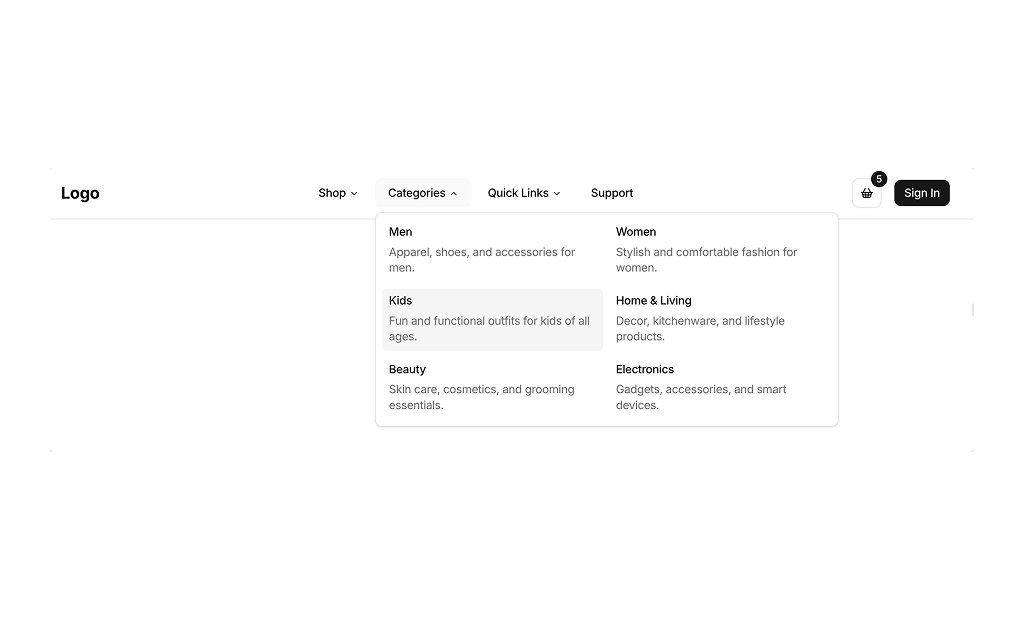
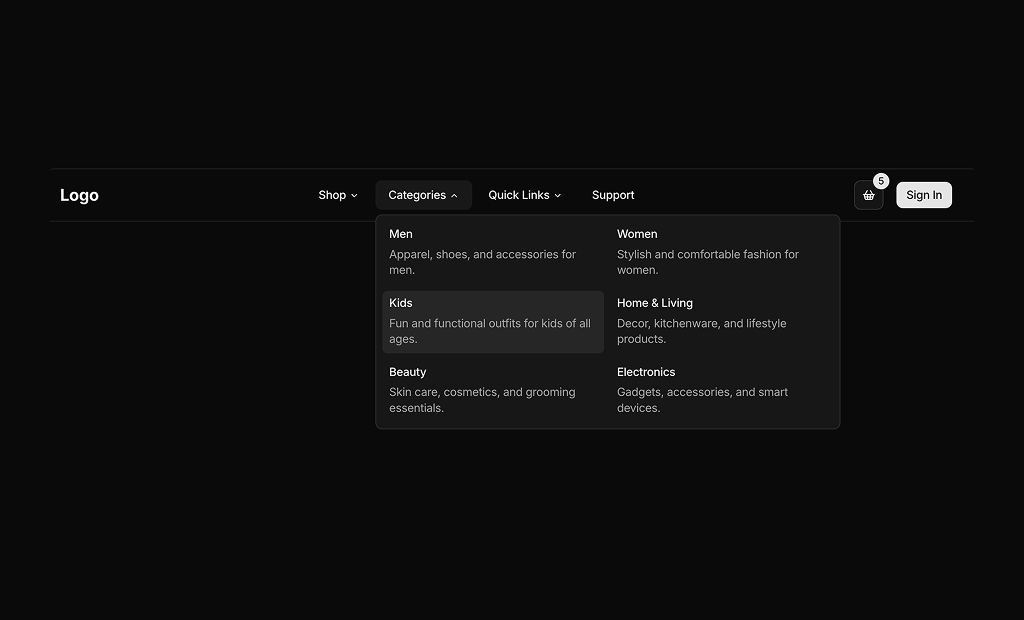
A navbar is the navigation bar at the top of a website or app that holds the logo, the main links and the key actions, and turns into a menu button on small screens. These fifteen shadcn navbar blocks cover simple marketing headers, app headers with notifications and a user menu, store headers with mega menus and a cart, and a full screen studio menu.
Like the rest of our shadcn blocks, every navbar is built with React, TypeScript and Tailwind CSS on top of shadcn ui components such as NavigationMenu, Sheet, DropdownMenu, Popover, Accordion, InputGroup and Avatar. Each one ships with a matching mobile drawer, keeps its links in simple arrays and follows your light and dark theme, so these shadcn components are ready to drop into a root layout.
Key Elements of a Navbar
- Logo: placed on the left or center and linked to the home page.
- Primary links: a short list of the most important pages, with dropdowns for deeper sections.
- Main action: one standout button such as Get Started, Sign up or Book a call.
- Utility controls: search, cart, notifications or a user menu, depending on the product.
- Mobile menu: a menu button that opens the same links in a drawer on small screens.
Where and Why to Use Navbar Blocks
Navigation is hard to get right on every screen size: dropdowns need keyboard support, mobile menus need focus handling and mega menus need to collapse cleanly. These blocks solve that with shadcn ui primitives built on Radix, so you start from a header that already works on desktop and mobile. Because they use the same Tailwind CSS tokens as the rest of your site, the header matches your pages from the start.
- SaaS marketing sites: a clean bar with a few links and Sign In and Get Started buttons.
- Web apps and dashboards: a header with search, messages, notifications and an avatar menu.
- Online stores: mega menus for categories plus search, wishlist and a cart preview.
- Course and marketplace platforms: category menus with icons, a search field and a promo banner.
- Agencies and studios: service and resource menus or a bold full screen menu.
Navbar Blocks in This Collection
- Navbar 1: A standard SaaS header for sites that need one small Resources dropdown next to the main links.
- Navbar 2: A floating, boxed bar that gives landing pages a softer, contained look.
- Navbar 3: A good first store header, with image and description dropdowns and a quick cart preview.
- Navbar 4: Keeps the links perfectly centered between the logo and the authentication buttons.
- Navbar 5: The base header for signed in apps that need messages and notifications at hand.
- Navbar 6: Adds search next to the logo, useful for apps where finding content is a primary task.
- Navbar 7: The same app tools with search moved to the right, grouped with the other utilities.
- Navbar 8: A lighter app header for products without messaging, showing who is signed in by name.
- Navbar 9: Search first, for tools such as file managers or knowledge bases where the header is mainly a search bar.
- Navbar 10: Built for beauty and skin care shops, with a centered brand and a category heavy shop menu.
- Navbar 11: Suits fashion and accessories stores that want editorial images inside the menu.
- Navbar 12: A two level retail header with a utility top bar, for stores with many product types.
- Navbar 13: Fits course platforms and marketplaces that run promotions and browse by category.
- Navbar 14: Organizes an agency’s customers, resources and company pages into clear icon menus.
- Navbar 15: A statement menu for creative studios and portfolios that prefer a full screen overlay.
Similar Block Categories
- Footers: pair the header with a footer that repeats the main links.
- Hero Sections: the section that usually sits directly below the navbar.
- Store Navigation: more navigation patterns made for online stores.
- Dropdown Components: extra user, notification and action menus for app headers.
- Sidebar Layouts: side navigation when an app outgrows a top bar.
Accessibility
The dropdowns and drawers come from Radix based shadcn components, so NavigationMenu, DropdownMenu, Popover, Accordion and Sheet handle keyboard navigation, Escape to close and focus return out of the box. Icon-only buttons are named: menu buttons use a screen reader only “Toggle menu” label or an aria-label, and the message, notification, cart, search, account and wishlist buttons carry aria-labels, with the cart label including the item count.
None of the Sheet drawers include a SheetTitle, which Radix expects for dialogs, so consider adding a visually hidden title such as “Menu”. The search fields rely on placeholders, so an aria-label would help. The avatar triggers in Navbar 5 to Navbar 9 remove the focus outline, so consider adding a visible focus style, and the active link in Navbar 15 could use aria-current to announce the current page.
Navbars FAQ
useState hook, and the drawer links call setIsOpen(false) on click so it closes after navigation (Navbar 3 only does this for its Sign In button). Navbar 9 is the exception: it keeps search, avatar and icons visible and has no drawer.CART_ITEMS array with name, variant, price, qty and image, and compute the item count and subtotal from it with reduce. Replace the array with data from your cart state or API, and wire the remove buttons and the View cart and Checkout links to your store routes.showBanner state to false, so it stays hidden until the page reloads. Persist that choice in storage if it should stay closed.active flag in MENU_LINKS.