About Shadcn UI Changelog Page Blocks
A changelog page is a dated record of what changed in your product, from new features to fixes and breaking changes. These four shadcn changelog blocks cover a timeline with authors, a release timeline with images, a versioned list with commit hashes and a card feed with labels and reactions.
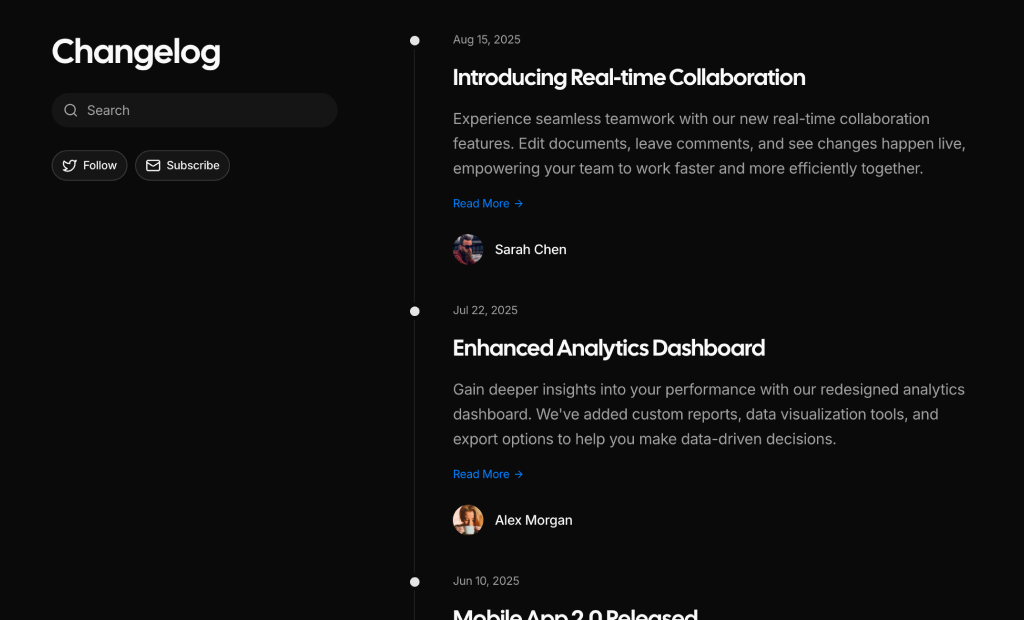
Like all our shadcn blocks, they are written in React and TypeScript, styled with Tailwind CSS and assembled from shadcn ui components such as Card, Badge, Avatar, Breadcrumb, Separator and InputGroup. Entries live in a typed array, so publishing a new release means adding one object, and the shadcn components follow your light and dark theme.
Key Elements of a Changelog Page
- Dates or versions: every entry is anchored to a date or version number so readers can place it in time.
- Clear titles: a few words such as “Analytics 2.0” that name the change before the details.
- Change types: labels or icons that separate new features, improvements, fixes and breaking changes.
- Scannable details: short paragraphs or bullet lists, with links to a full post, commit or issue where needed.
- Ways to stay updated: subscribe, RSS or follow buttons for readers who want the next release.
Where and Why to Use Changelog Blocks
Shipping often only builds trust if people can see it. A public changelog turns your release history into proof that the product is alive, gives users a place to check whether a bug was fixed and saves your team from writing the same update in several channels. With shadcn ui and Tailwind CSS the page looks like the rest of your site and docs from day one.
- SaaS products: publish monthly feature releases with the person or team behind each one.
- Open source libraries: list versions with commit hashes, issue links and breaking changes.
- Mobile and desktop apps: explain what is new in each build with screenshots and bullet lists.
- Feedback and roadmap tools: label updates by type and collect quick reactions from readers.
- Documentation sites: add a release notes section next to the docs with breadcrumb navigation.
Changelog Blocks in This Collection
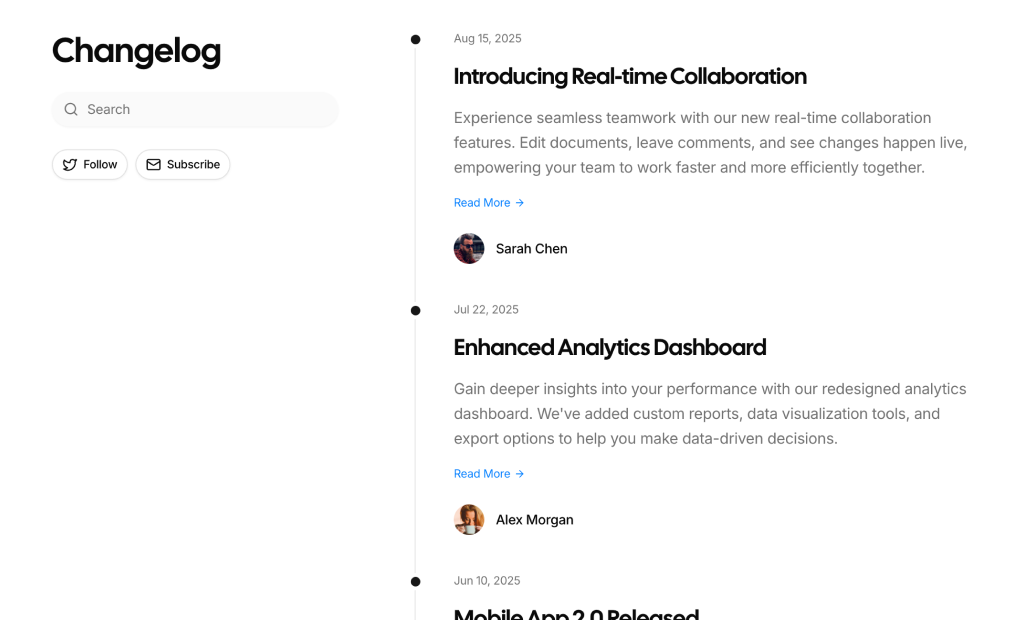
- Changelog 1: Suits teams that write longer release posts and want to credit the author, while search and follow actions stay visible beside the timeline.
- Changelog 2: A good fit when updates are visual or come as short lists of changes, with dates in their own column on desktop.
- Changelog 3: Choose it for libraries, APIs and developer tools where each change should link back to a commit and an issue.
- Changelog 4: Works like a hosted product update feed, with filterable labels, a subscribe button and a quick reaction row under every post.
Similar Block Categories
- Newsletter Sections: let readers subscribe to release emails below the changelog.
- Feature Sections: present a major release in more depth on your homepage.
- FAQs: answer common questions about upgrades and breaking changes.
- Empty State: handle a search or label filter that returns no entries.
- Footers: link to the changelog from every page of the site.
Accessibility
Each block starts with an h1 for the page title and uses h2 for entry titles, which gives screen reader users a clear outline. Changelog 3 uses the shadcn Breadcrumb, which renders a nav landmark and marks the current page. Avatar images in Changelog 1 carry the author name as alt text, and the image in Changelog 2 uses the entry title.
Some controls need extra labels before you ship. The icon only buttons in Changelog 2 (Twitter, RSS, email) and the reaction buttons in Changelog 4 have no accessible name, so add an aria-label to each. The search inputs rely on a placeholder, so consider adding a visually hidden label or an aria-label as well.
Changelog FAQ
changelogData array. Changelog 1 entries have date, title, description, author, avatar and readMoreLink. Changelog 2 entries have date, title, an optional image and sections of bullet items. Changelog 3 groups items by version with a hash, message and optional issue number. Changelog 4 entries have type, date, title, description and highlights.image field that renders a bordered image above the bullet lists. The sample uses a plain img tag, so switch to next/image if you want automatic optimization.changelogData by title or description to make it work. The same applies to the label buttons in Changelog 4.badgeColor function maps it to green, blue, red or gray badge colors. The sidebar lists the same labels from a labels array with a colored dot and a count badge, and the active one uses the secondary button variant.prose classes, so @tailwindcss/typography must be loaded in your CSS with @plugin. Without it the list loses its bullets and spacing.